> ## Documentation Index
> Fetch the complete documentation index at: https://docs.roxom.com/llms.txt
> Use this file to discover all available pages before exploring further.
# How to transfer funds between accounts
> Step-by-step guide to moving BTC, USDC, and USDT between your Funding Account and Unified Trading Account (UTA).
You need to transfer funds from your **Funding Account** to your **Unified Trading Account (UTA)** before you can trade. You can transfer **BTC**, **USDC**, and **USDT** to the UTA. You can also transfer funds back to your Funding Account when you want to withdraw or earn with Auto-Earn.
Transfers between accounts are **instant and free**.
While you can transfer USDC and USDT to the UTA, you cannot use them directly for trading. You must first sell them for BTC using [One-Click Trade (Swap)](/help-center/one-click-trade/what-is-one-click-trade-what-assets-are-available), then trade with BTC.
***
## Transfer from Funding Account to UTA
You need BTC in your UTA to open futures positions or use One-Click Trade. You can also transfer USDC or USDT and sell them for BTC once they are in the UTA.
Go to Portfolio}>
From the main navigation, go to **Portfolio**.
Click on **Funding Account**.
Click **Transfer** and set:
* **From**: Funding
* **To**: Unified Trading
Choose **BTC**, **USDC**, or **USDT**.
Enter the amount you want to transfer.
Click **Confirm Transfer**. The funds appear in your UTA immediately.
If you transfer USDC or USDT, remember that you cannot trade with them directly. Sell them for BTC in the UTA using [One-Click Trade (Swap)](/help-center/one-click-trade/what-is-one-click-trade-what-assets-are-available) before trading. See [Supported currencies](/help-center/account-basics/supported-currencies) for details.
***
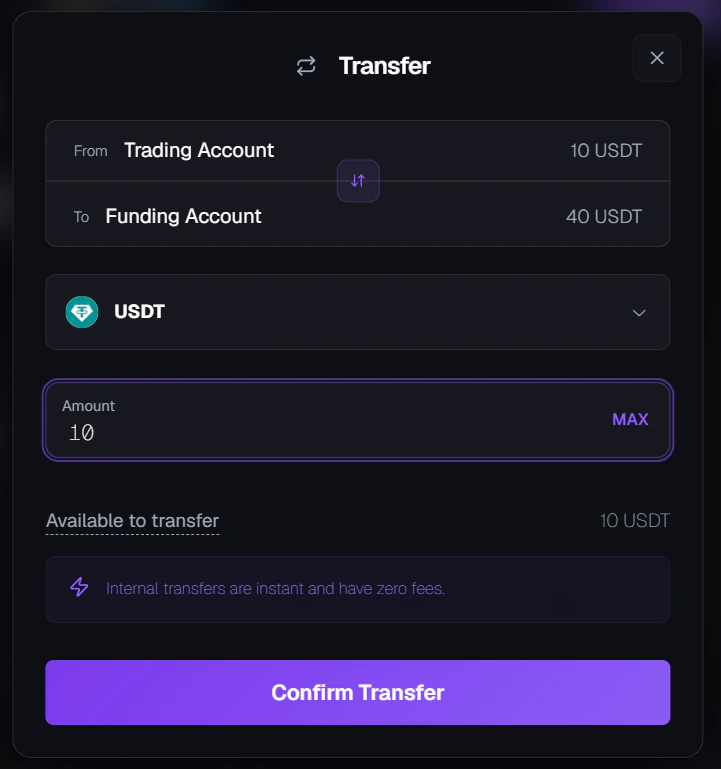
## Transfer from UTA to Funding Account
Move BTC back to your Funding Account when you want to withdraw or keep funds in Auto-Earn.
Go to Portfolio}>
From the main navigation, go to **Portfolio**.
Click on **Trading Account**.
Click **Transfer** and set:
* **From**: Trading Account
* **To**: Funding Account
Enter the BTC, USDC, or USDT amount you want to transfer back.
Click **Confirm Transfer**. The transferred currency appears in your Funding Account immediately.
 BTC that is currently used as **margin for open positions** cannot be transferred out of the UTA. You must close or reduce your positions first.
***
## Common questions
No. Transfers between your Funding Account and UTA are **completely free**.
Transfers are **instant**. Your balance updates immediately.
Yes. You can transfer USDC and USDT to the UTA. However, you **cannot** use them directly for trading, you must sell them for BTC first using [One-Click Trade (Swap)](/help-center/one-click-trade/what-is-one-click-trade-what-assets-are-available).
No. Transfers between your Funding Account and UTA are internal account movements and do **not** count toward your [daily withdrawal limit](/help-center/crypto-deposits-withdrawals/what-is-the-withdrawal-limit-in-roxom).
No. BTC assigned as margin to open positions is locked. You need to close or reduce those positions to free up the BTC.
***
This content is for informational purposes only and does not constitute investment advice. Trading digital assets involves significant risk, including the potential loss of your entire investment. Please review our [Risk Notice](/legal/risk-notice) before trading.
## Need help?
Still have questions? You can speak to **Roxy**, our AI support assistant, available 24/7 in the chat bubble at the bottom right of your screen.
You can also contact our support team directly at [help@roxom.com](mailto:help@roxom.com).
***
## Related articles
Open article
Open article
Open article
BTC that is currently used as **margin for open positions** cannot be transferred out of the UTA. You must close or reduce your positions first.
***
## Common questions
No. Transfers between your Funding Account and UTA are **completely free**.
Transfers are **instant**. Your balance updates immediately.
Yes. You can transfer USDC and USDT to the UTA. However, you **cannot** use them directly for trading, you must sell them for BTC first using [One-Click Trade (Swap)](/help-center/one-click-trade/what-is-one-click-trade-what-assets-are-available).
No. Transfers between your Funding Account and UTA are internal account movements and do **not** count toward your [daily withdrawal limit](/help-center/crypto-deposits-withdrawals/what-is-the-withdrawal-limit-in-roxom).
No. BTC assigned as margin to open positions is locked. You need to close or reduce those positions to free up the BTC.
***
This content is for informational purposes only and does not constitute investment advice. Trading digital assets involves significant risk, including the potential loss of your entire investment. Please review our [Risk Notice](/legal/risk-notice) before trading.
## Need help?
Still have questions? You can speak to **Roxy**, our AI support assistant, available 24/7 in the chat bubble at the bottom right of your screen.
You can also contact our support team directly at [help@roxom.com](mailto:help@roxom.com).
***
## Related articles
Open article
Open article
Open article