> ## Documentation Index
> Fetch the complete documentation index at: https://docs.roxom.com/llms.txt
> Use this file to discover all available pages before exploring further.
# How do I check the status of my withdrawal?
> Learn how to check your crypto withdrawal status on Roxom, understand each status meaning, and track blockchain transactions.
After you request a crypto withdrawal, you can follow its progress from multiple places in Roxom. This article explains where to see the status, what each state means, and how to track your transaction on the blockchain.
## Where to check the status
There are three ways to check the status of your withdrawal:
### 1. Recent withdrawals (Withdraw Crypto page)
Go to the [**Withdraw**](https://roxom.com/exchange/account/withdraw) section from the top-right corner of the platform. At the bottom of the screen, you'll see the **Recent Withdrawals** section with all your recent withdrawal activity.
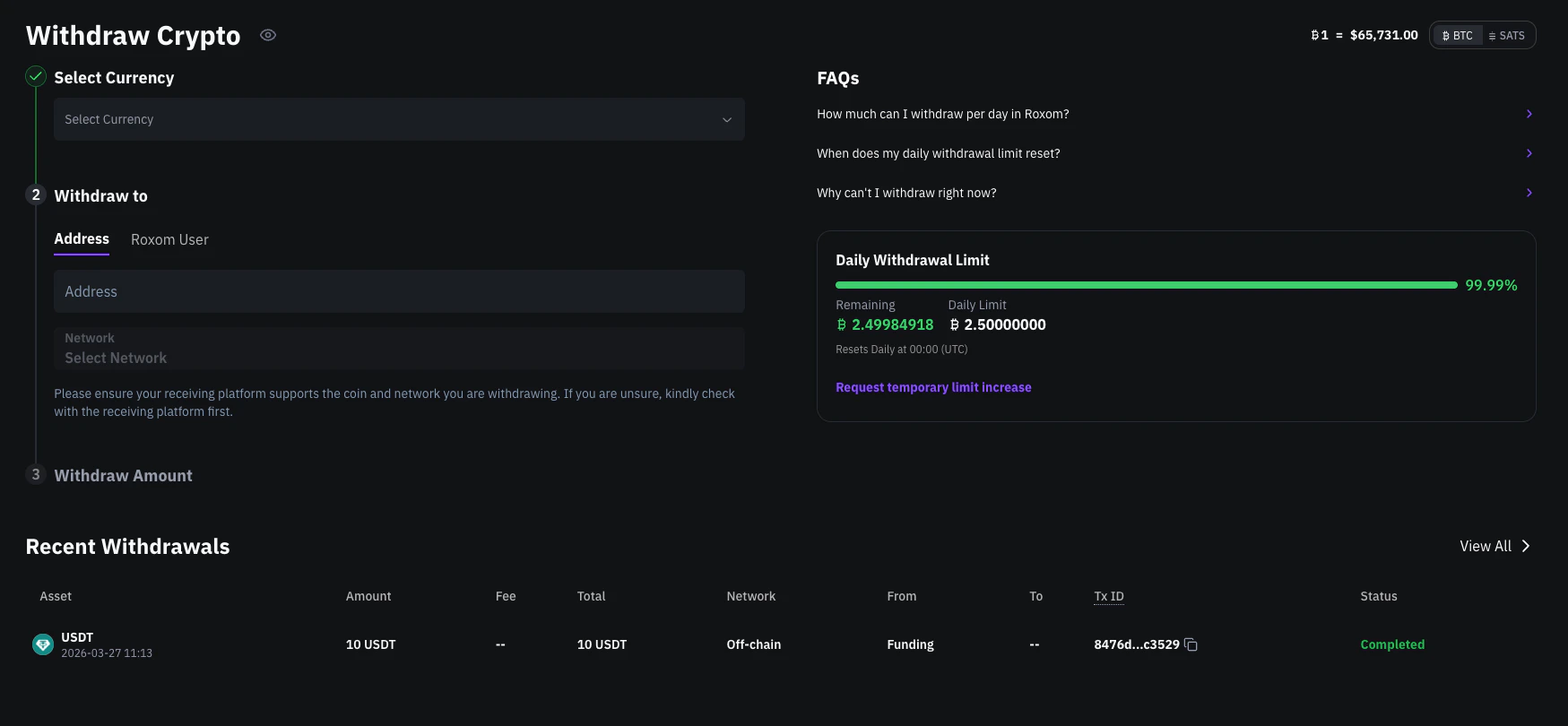 Each entry includes:
* **Asset** (BTC, USDC, or USDT)
* Amount, fee, and total
* Network
* From / To
* Transaction ID (TxID), if available
* **Status** of the transaction
### 2. Recent movements (Funding Account)
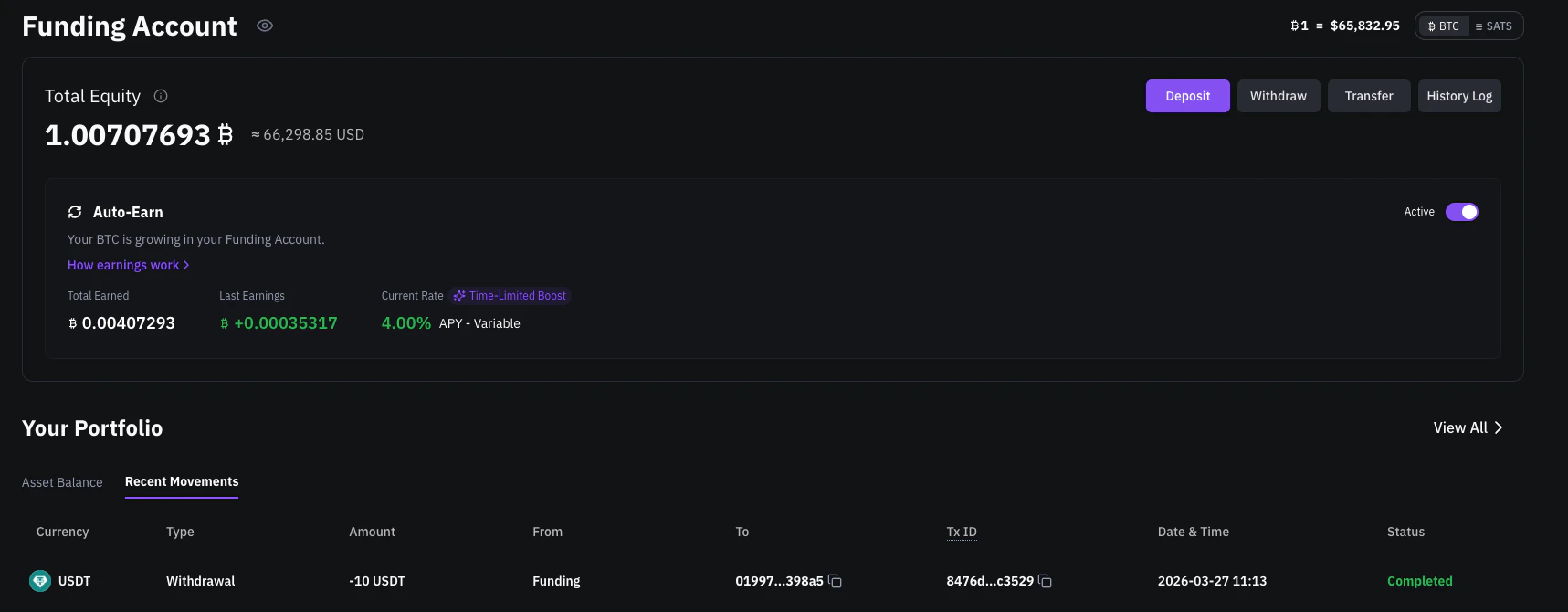
Go to your **Funding Account** and switch to the **Recent Movements** tab under **Your Portfolio**. This view shows all movements in your Funding Account, not just withdrawals, but also deposits and transfers.
Each entry includes:
* **Asset** (BTC, USDC, or USDT)
* Amount, fee, and total
* Network
* From / To
* Transaction ID (TxID), if available
* **Status** of the transaction
### 2. Recent movements (Funding Account)
Go to your **Funding Account** and switch to the **Recent Movements** tab under **Your Portfolio**. This view shows all movements in your Funding Account, not just withdrawals, but also deposits and transfers.
 ### 3. History Log
For a complete record of all account activity, go to your **Funding Account** and click the [**History Log**](https://roxom.com/exchange/account/history-log) button. This gives you a full transaction log across all types of movements.
## What each status means
| Status | What it means |
| :------------ | :---------------------------------------------------------------------------------------------------------------------------------------------------------------------------------------------------------------- |
| **Pending** | The withdrawal is being processed internally and hasn't yet reached the blockchain. It may be waiting for batching, validation, or confirmation from Fireblocks. |
| **Completed** | Your withdrawal was successfully processed and sent to the blockchain. You'll see a TxID you can click to track the transaction. |
| **Failed** | The withdrawal could not be processed due to an internal error (e.g., balance, limits, system issues). No transaction was created. |
| **Rejected** | Your withdrawal was blocked due to high-risk activity detected by Roxom's KYT system (e.g., interacting with flagged addresses). No transaction was created. You will be contacted via email to resolve the case. |
## How to check your transaction on the blockchain
If the status is **Completed**, you'll see a clickable **TxID** next to the withdrawal.
Clicking the TxID opens a Bitcoin blockchain explorer (like [mempool.space](https://mempool.space)) where you can view confirmations, timestamps, and the recipient address.
Clicking the TxID opens the relevant block explorer for the network used ([Polygon](https://polygonscan.com/), [Base](https://basescan.org/), or [Ethereum](https://etherscan.io/)) where you can view the transaction details, confirmations, and status.
If there's no TxID, the transaction didn't reach the blockchain. This is typical for statuses like **Pending**, **Rejected**, or **Failed**.
***
## Related articles
Open article
Open article
### 3. History Log
For a complete record of all account activity, go to your **Funding Account** and click the [**History Log**](https://roxom.com/exchange/account/history-log) button. This gives you a full transaction log across all types of movements.
## What each status means
| Status | What it means |
| :------------ | :---------------------------------------------------------------------------------------------------------------------------------------------------------------------------------------------------------------- |
| **Pending** | The withdrawal is being processed internally and hasn't yet reached the blockchain. It may be waiting for batching, validation, or confirmation from Fireblocks. |
| **Completed** | Your withdrawal was successfully processed and sent to the blockchain. You'll see a TxID you can click to track the transaction. |
| **Failed** | The withdrawal could not be processed due to an internal error (e.g., balance, limits, system issues). No transaction was created. |
| **Rejected** | Your withdrawal was blocked due to high-risk activity detected by Roxom's KYT system (e.g., interacting with flagged addresses). No transaction was created. You will be contacted via email to resolve the case. |
## How to check your transaction on the blockchain
If the status is **Completed**, you'll see a clickable **TxID** next to the withdrawal.
Clicking the TxID opens a Bitcoin blockchain explorer (like [mempool.space](https://mempool.space)) where you can view confirmations, timestamps, and the recipient address.
Clicking the TxID opens the relevant block explorer for the network used ([Polygon](https://polygonscan.com/), [Base](https://basescan.org/), or [Ethereum](https://etherscan.io/)) where you can view the transaction details, confirmations, and status.
If there's no TxID, the transaction didn't reach the blockchain. This is typical for statuses like **Pending**, **Rejected**, or **Failed**.
***
## Related articles
Open article
Open article