> ## Documentation Index
> Fetch the complete documentation index at: https://docs.roxom.com/llms.txt
> Use this file to discover all available pages before exploring further.
# How to withdraw crypto from your Roxom account
> Step-by-step guide to withdraw BTC, USDC, or USDT from Roxom to an external wallet.
Withdrawing crypto from Roxom is a simple and secure process. You can withdraw **BTC**, **USDC**, or **USDT** to an external wallet. This guide covers the step-by-step flow and requirements for each currency.
## Before you start
To make a withdrawal, your account must meet these requirements:
* You've completed your **Account Verification**.
* You've set up a **strong security method**:
* **Passkey** (recommended), or
* **Authenticator App (OTP)**
If you haven't configured one yet, from the header, open your **profile menu** and go to [**Security**](https://roxom.com/user/security).
## How to withdraw crypto
You can always access the [**Withdraw**](https://roxom.com/exchange/account/withdraw) option from the top-right corner of the platform, regardless of which page you are currently on.
Once in the withdrawal screen, follow these steps:
Choose the currency you want to withdraw: **BTC**, **USDC**, or **USDT**.
You can withdraw to two types of destinations:
Paste the recipient's wallet address to send funds to an **external wallet**.
The address must start with `bc1`, `1`, or `3`. If the address is invalid or incomplete, an error will appear.
The address must be a valid EVM address starting with `0x`. Make sure the destination wallet supports the selected network.
Then select the network:
The network is automatically set to **Bitcoin (BTC)**: the only supported option for BTC withdrawals.
Roxom does not support BTC withdrawals via Lightning, BEP-20, ERC-20, or any other network. Make sure the destination wallet accepts Bitcoin on the native Bitcoin network.
Choose between **Polygon**, **Base**, and **Ethereum**. All three are EVM-compatible networks.
Make sure the destination wallet supports the exact network you select. Sending to the wrong network may result in permanent loss of funds.
Please ensure your receiving platform supports the coin and network you are withdrawing. If you are unsure, check with the receiving platform first.
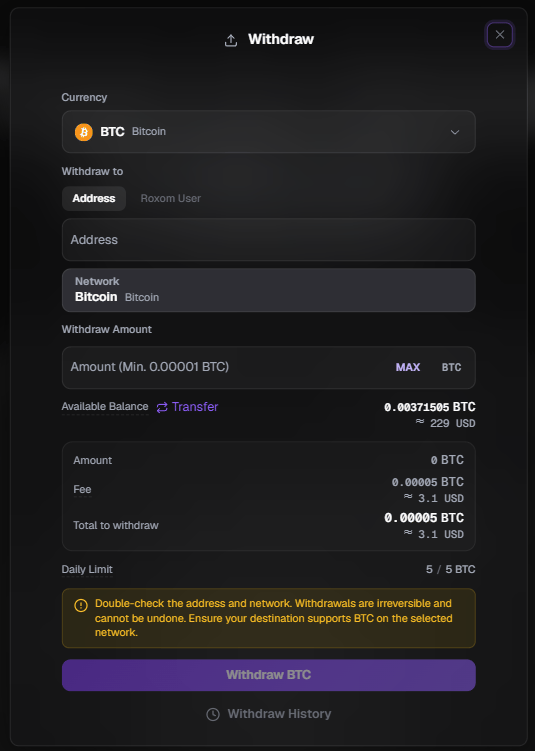 You'll see an **estimated arrival time** below the selected network. This is a reference only and reflects the time for the transaction to be broadcast, not the time it will be credited on the receiving side.
The destination wallet or exchange may require additional blockchain confirmations before making the funds available.
Send funds directly to another **Roxom user** without going through the blockchain. Select the **Roxom User** tab and enter the recipient's **RoxID**.
You'll see an **estimated arrival time** below the selected network. This is a reference only and reflects the time for the transaction to be broadcast, not the time it will be credited on the receiving side.
The destination wallet or exchange may require additional blockchain confirmations before making the funds available.
Send funds directly to another **Roxom user** without going through the blockchain. Select the **Roxom User** tab and enter the recipient's **RoxID**.
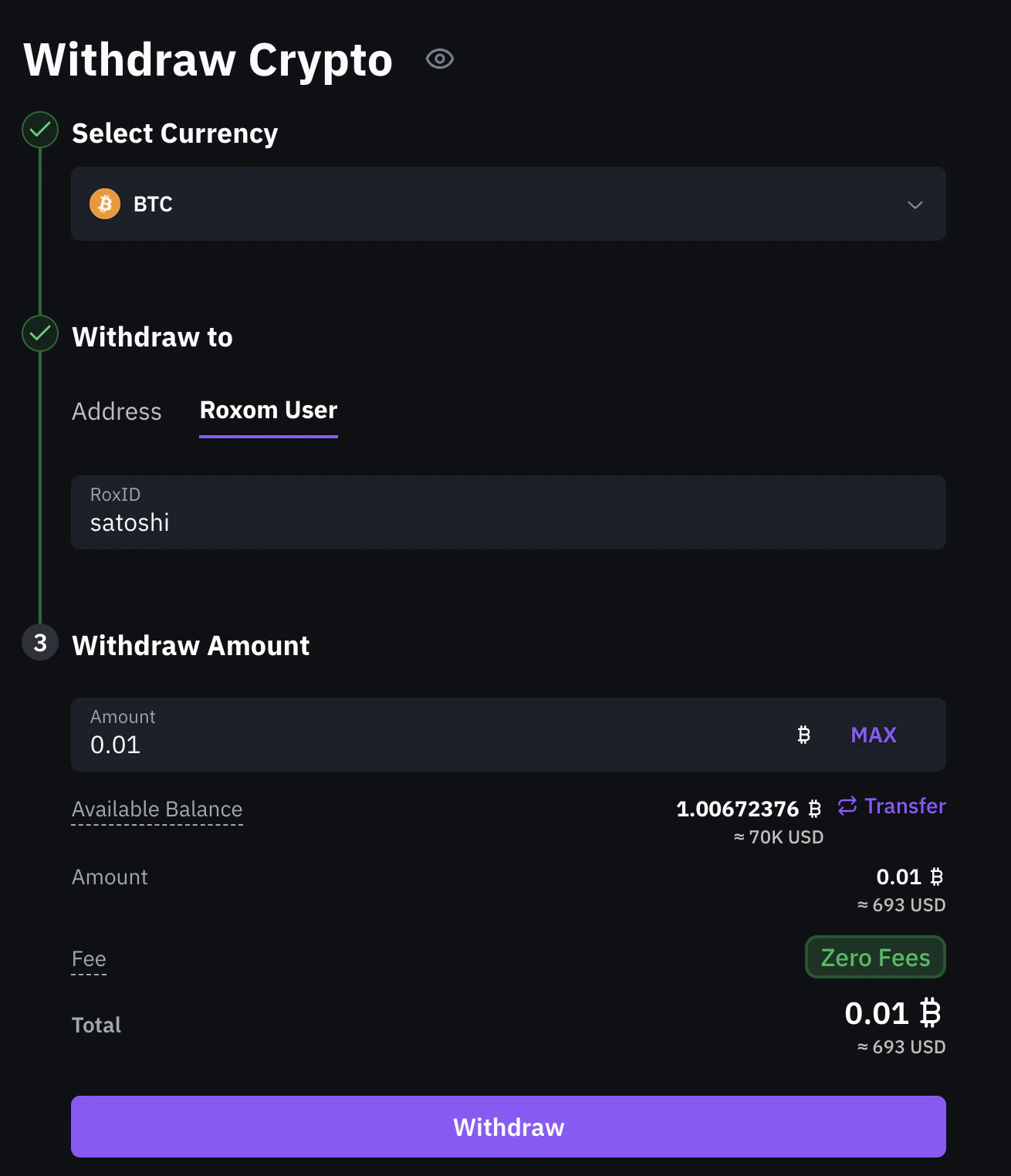 Internal transfers between Roxom users are **instant** and have **zero fees**.
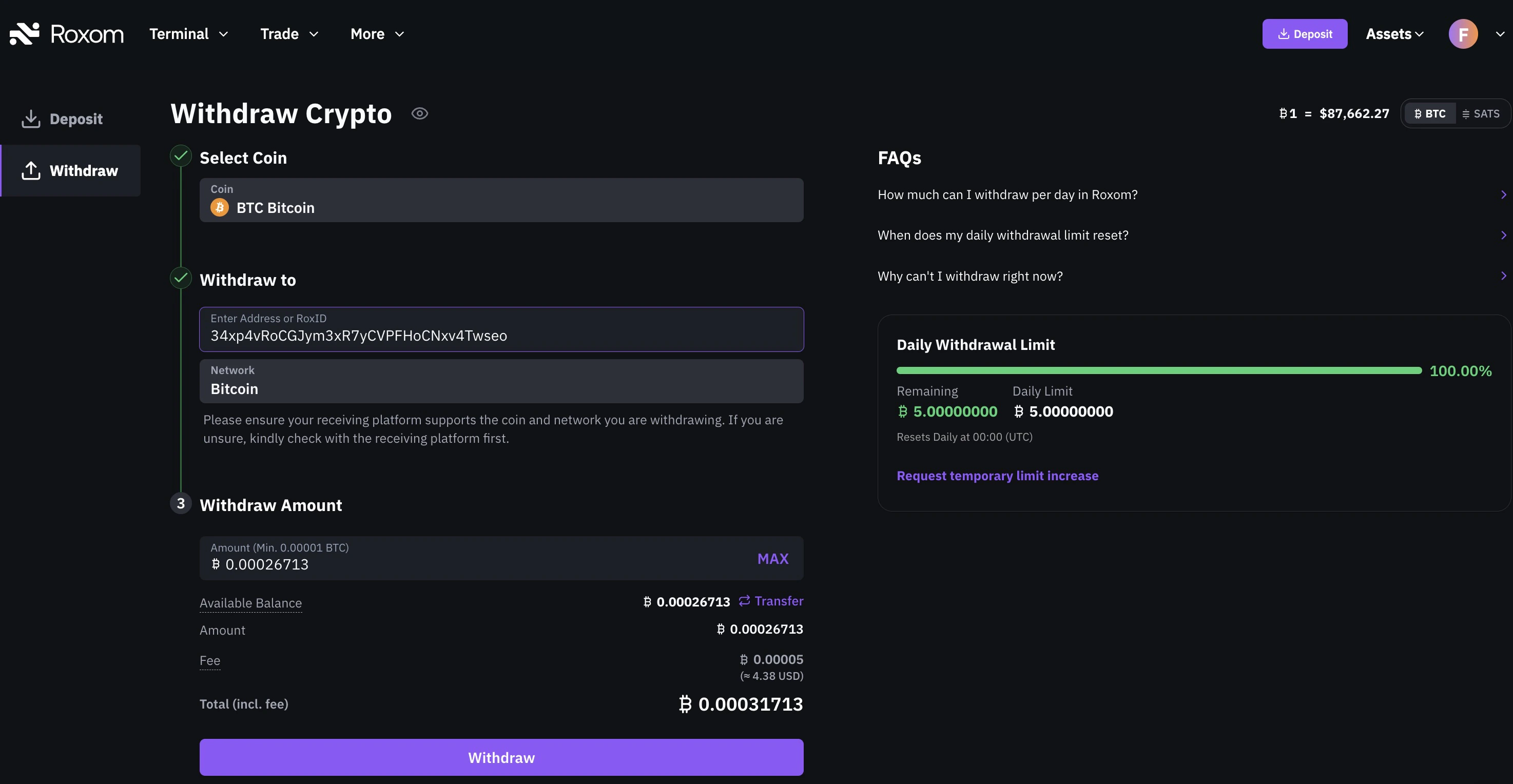
Enter how much you want to withdraw. You'll see your **Available Balance** at the top of the section, this shows how much you currently have in your **Funding Account**.
You can only withdraw from your **Funding Account**. If your funds are in your **Unified Trading Account**, you'll need to **transfer** them first using the **Transfer** button.
| Detail | Value |
| :--------------------- | :------------------------ |
| **Minimum withdrawal** | 0.00001 BTC + network fee |
| **Fee** | 0.00005 BTC (5,000 sats) |
| Detail | Value |
| :--------------------- | :------------ |
| **Minimum withdrawal** | 10 USDC + fee |
| **Fee** | 1 USDC |
| Detail | Value |
| :--------------------- | :------------ |
| **Minimum withdrawal** | 10 USDT + fee |
| **Fee** | 1 USDT |
Withdrawal fees are always charged in the same currency you are withdrawing.
The **total (incl. fee)** shows the full amount that will be deducted from your balance.
Internal transfers between Roxom users are **instant** and have **zero fees**.
Enter how much you want to withdraw. You'll see your **Available Balance** at the top of the section, this shows how much you currently have in your **Funding Account**.
You can only withdraw from your **Funding Account**. If your funds are in your **Unified Trading Account**, you'll need to **transfer** them first using the **Transfer** button.
| Detail | Value |
| :--------------------- | :------------------------ |
| **Minimum withdrawal** | 0.00001 BTC + network fee |
| **Fee** | 0.00005 BTC (5,000 sats) |
| Detail | Value |
| :--------------------- | :------------ |
| **Minimum withdrawal** | 10 USDC + fee |
| **Fee** | 1 USDC |
| Detail | Value |
| :--------------------- | :------------ |
| **Minimum withdrawal** | 10 USDT + fee |
| **Fee** | 1 USDT |
Withdrawal fees are always charged in the same currency you are withdrawing.
The **total (incl. fee)** shows the full amount that will be deducted from your balance.
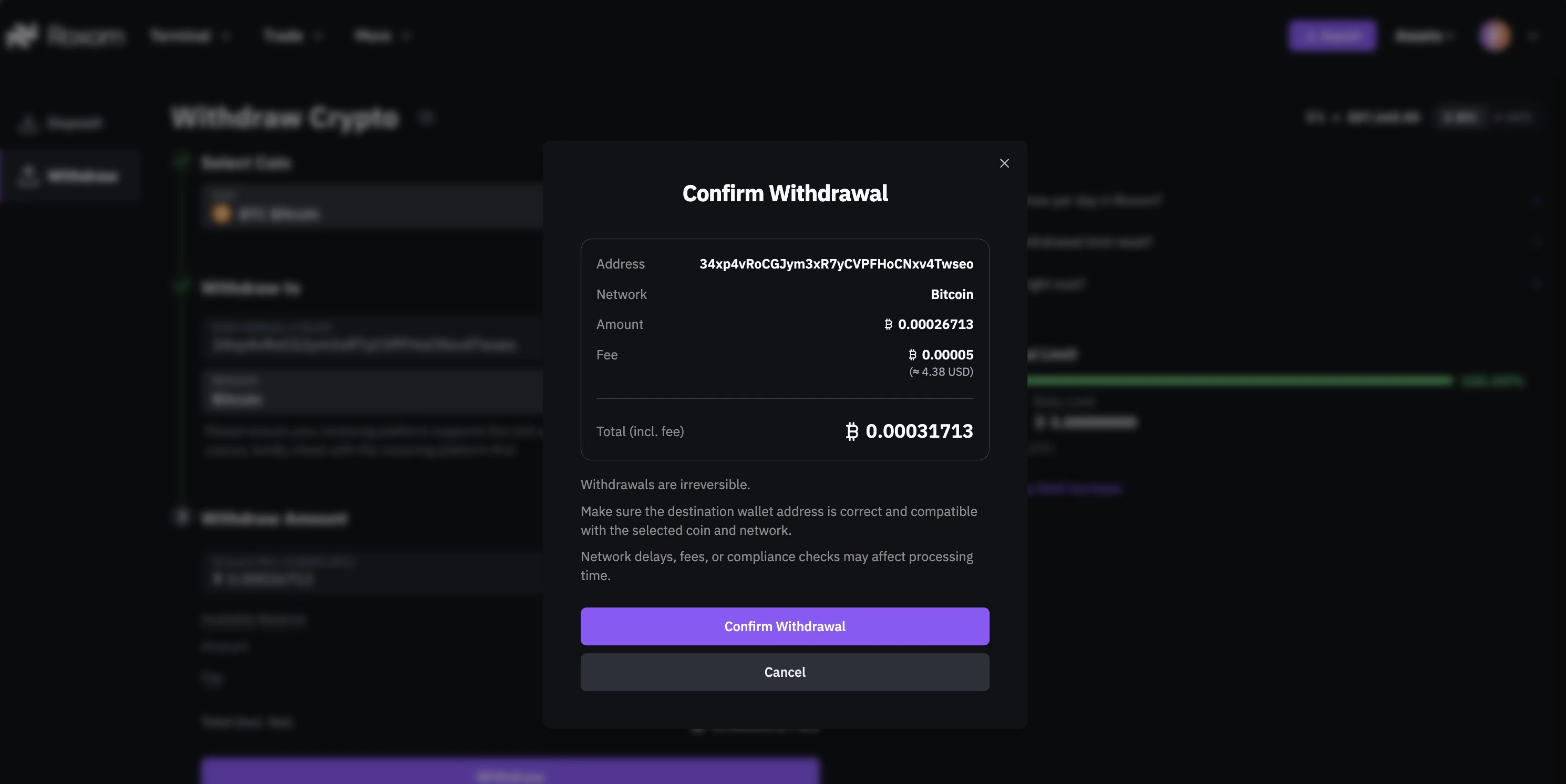
 Click **Withdraw** to review the summary:
* Destination address
* Network
* Amount
* Fee
* Total
Click **Confirm Withdrawal** to proceed.
Click **Withdraw** to review the summary:
* Destination address
* Network
* Amount
* Fee
* Total
Click **Confirm Withdrawal** to proceed.
 ## Security verification
To complete the withdrawal, you'll need to go through a security check. The steps depend on the method you have set up:
You'll be prompted to verify your identity using your device's authentication method (e.g., fingerprint, face recognition, or device PIN). No additional step is required.
This method requires **two steps**:
1. Enter the **6-digit code** from your authenticator app (e.g., Google Authenticator or Authy).
2. Enter the **verification code sent to your email**.
Both codes are required to authorize the withdrawal.
## What's next?
Once your security check is completed, your withdrawal will be processed. You'll receive an email notification once it's on the blockchain.
***
## Need help?
Still have questions? You can speak to **Roxy**, our AI support assistant, available 24/7 in the chat bubble at the bottom right of your screen.
You can also contact our support team directly at [help@roxom.com](mailto:help@roxom.com).
***
## Related articles
Open article
Open article
## Security verification
To complete the withdrawal, you'll need to go through a security check. The steps depend on the method you have set up:
You'll be prompted to verify your identity using your device's authentication method (e.g., fingerprint, face recognition, or device PIN). No additional step is required.
This method requires **two steps**:
1. Enter the **6-digit code** from your authenticator app (e.g., Google Authenticator or Authy).
2. Enter the **verification code sent to your email**.
Both codes are required to authorize the withdrawal.
## What's next?
Once your security check is completed, your withdrawal will be processed. You'll receive an email notification once it's on the blockchain.
***
## Need help?
Still have questions? You can speak to **Roxy**, our AI support assistant, available 24/7 in the chat bubble at the bottom right of your screen.
You can also contact our support team directly at [help@roxom.com](mailto:help@roxom.com).
***
## Related articles
Open article
Open article