> ## Documentation Index
> Fetch the complete documentation index at: https://docs.roxom.com/llms.txt
> Use this file to discover all available pages before exploring further.
# How to buy or sell tokenized assets
> Step-by-step guide to buying and selling tokenized stocks with BTC using Roxom's One-Click Trade swap interface.
One-Click Trade lets you instantly **swap Bitcoin (BTC) for crypto assets or tokenized equities, and swap back to BTC** using a single, swap-style interface.
This guide explains how to **buy and sell assets step by step**, what to expect during execution, and how pricing works.
***
## Prerequisites
Before placing a trade, make sure that:
* You have **Bitcoin (BTC)** (or another supported asset) available in your **Unified Trading Account (UTA)**
* For **tokenized equities**: the U.S. market must be **open** (Monday-Friday, 9:30 AM-4:00 PM EST)
* For **crypto assets** (ETH, SOL, USDC, USDT): available **24/7**
**Deposited USDC or USDT?** The trading flow on Roxom is always BTC-based. If you deposited stablecoins, you first need to **sell them for BTC** via One-Click Trade. Then you can use that BTC to buy any other asset on the platform, crypto, stocks, or ETFs.
Example flow: **USDT → BTC → AAPL** (or any other asset)
## How the One-Click Trade modal works
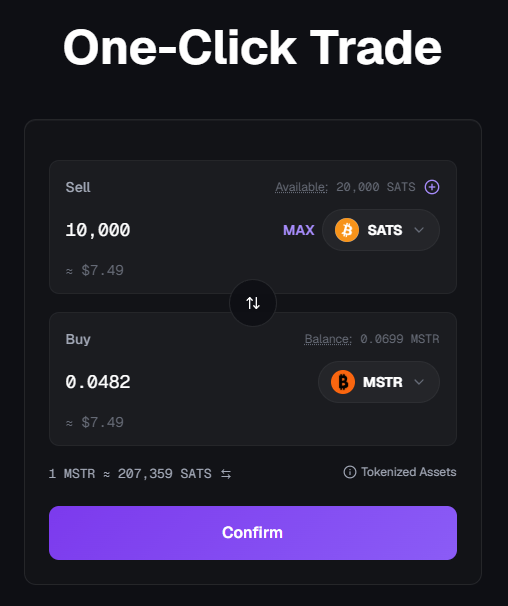
One-Click Trade uses a **single swap-style modal** with two sections:
* **Sell** (top): the asset you want to swap from. The dropdown only shows **assets you currently hold**. Your spendable balance is shown next to **Available**, and a **`+`** button lets you quickly deposit more of that asset.
* **Buy** (bottom): the asset you want to receive. Your current holdings of that asset are shown next to **Balance**.
Both sections display a live **USD estimate** under the amount (for example, `≈ $99.62`). A swap arrow (↑↓) between the two sections lets you flip the direction in one click.
At the bottom of the modal you'll see:
* The current **indicative exchange rate** (for example, `1 STRC ≈ 0.00133091 BTC`), with a small toggle (↹) to invert the quote direction.
* A **Tokenized Assets** info link with details about the underlying instruments.
* The main **Confirm** action button.
**BTC is the hub of every trade.** Every One-Click Trade swap has BTC on one side:
* If you **Sell BTC**, you can **Buy any supported asset** (crypto or tokenized equity).
* If you **Sell any other asset** (STRC, ETH, SOL, AAPL, SPY, etc.), you can **only Buy BTC**.
To go from one non-BTC asset to another (for example, STRC → AAPL), swap to BTC first, then swap BTC into the target asset.
## How to buy a tokenized asset
### Step 1: Select assets and amount
1. Navigate to the **One-Click Trade** interface.
2. In **Sell** (top), select **BTC** from the dropdown and enter the amount you want to spend.
* Click **MAX** to use your full available balance, or **`+`** to deposit more BTC first.
* The USD value of the amount you're selling appears below the input (for example, `≈ $99.62`).
3. In **Buy** (bottom), use the dropdown to search for and select the asset you want to buy (for example, AAPL or STRC).
The Buy section updates automatically with the estimated amount you'll receive and its USD value. The indicative exchange rate (for example, `1 STRC ≈ 0.00133091 BTC`) is shown at the bottom of the modal.
 ***
### Step 2: Review the estimate
* The interface displays an **estimated amount** of the asset you will receive based on the current market price.
* Click **Confirm** to proceed.
This amount is an estimate, not a guaranteed price.
***
### Step 3: Confirm the quote
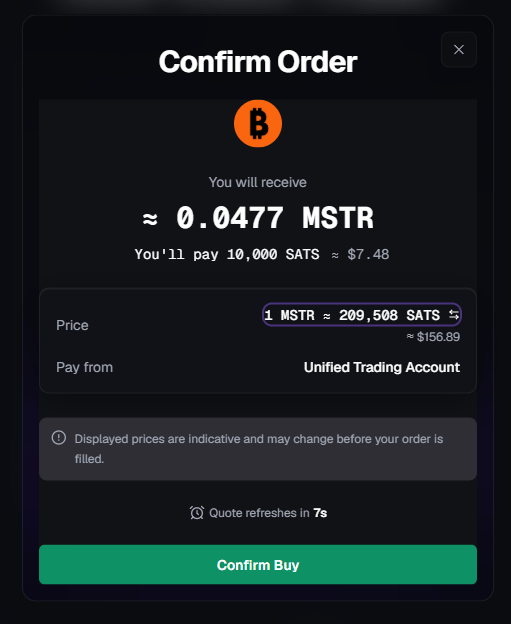
* A **Confirm** window appears showing the execution quote for the swap.
* The quote is **time-sensitive** and refreshes automatically.
* You have **10 seconds** to accept the current quote.
* Click **Confirm** before the timer expires to execute the swap.
If the timer reaches zero, the quote is **automatically refreshed** with a new approximate price, and the countdown restarts.
***
### Step 2: Review the estimate
* The interface displays an **estimated amount** of the asset you will receive based on the current market price.
* Click **Confirm** to proceed.
This amount is an estimate, not a guaranteed price.
***
### Step 3: Confirm the quote
* A **Confirm** window appears showing the execution quote for the swap.
* The quote is **time-sensitive** and refreshes automatically.
* You have **10 seconds** to accept the current quote.
* Click **Confirm** before the timer expires to execute the swap.
If the timer reaches zero, the quote is **automatically refreshed** with a new approximate price, and the countdown restarts.
 ***
### Step 4: Execution and confirmation
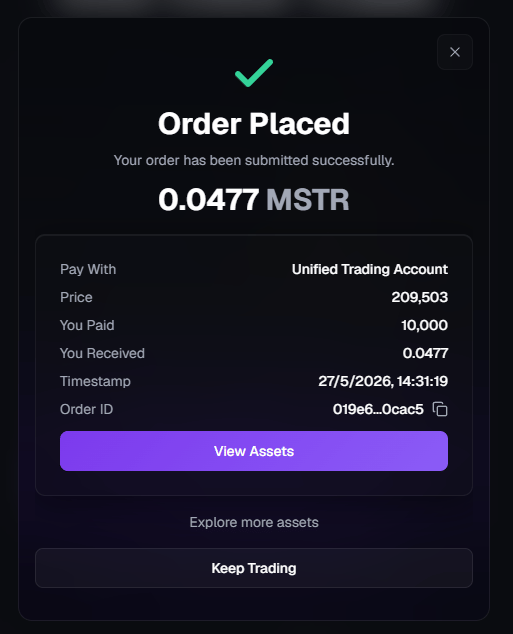
* Once confirmed, the swap executes **instantly**.
* You'll see a **confirmation screen** showing the **final execution details**, including:
* The **final amount received**
* The **exact BTC (or SATS) paid**
* The **final execution price**
* Timestamp and reference ID
In addition:
* A confirmation appears in the **Notification Center**
* A **confirmation email** is sent to your registered email address
* Your asset is immediately available in your **Unified Trading Account (UTA)**
***
### Step 4: Execution and confirmation
* Once confirmed, the swap executes **instantly**.
* You'll see a **confirmation screen** showing the **final execution details**, including:
* The **final amount received**
* The **exact BTC (or SATS) paid**
* The **final execution price**
* Timestamp and reference ID
In addition:
* A confirmation appears in the **Notification Center**
* A **confirmation email** is sent to your registered email address
* Your asset is immediately available in your **Unified Trading Account (UTA)**
 ***
## How to sell a tokenized asset
Selling follows **the same swap flow as buying**, just with the direction reversed. You can either:
* Click the **swap arrow (↑↓)** between the Sell and Buy sections to flip the direction, or
* Open the **Sell** dropdown and pick the asset you want to sell (only assets you currently hold appear).
### What changes when selling
* **Sell** (top) shows the asset you currently hold (for example, STRC, AAPL, ETH). Your position appears next to **Available**.
* **Buy** (bottom) is locked to **BTC**: when selling any non-BTC asset, BTC is the only available output. Your current BTC holdings appear next to **Balance**.
* Enter the amount to sell or click **MAX** to sell your full position. The USD estimate updates live in both sections.
All other steps remain the same:
* You review an estimate
* You confirm a time-sensitive quote
* The swap executes instantly after confirmation
***
### Execution and confirmation (sell)
Once you confirm the quote:
* The swap executes **instantly**
* You'll see a confirmation screen with the **final execution details**
* The **final BTC amount** is credited to your **Unified Trading Account (UTA)**
* A confirmation appears in the **Notification Center**
* A **confirmation email** is sent to your registered email address
The BTC credited reflects the **final executed price**, not an estimate.
***
## Are there any trading fees?
**One-Click Trade does not charge explicit trading fees.**\
The price shown in the confirmation quote reflects the execution price of the swap, with no additional charges applied after confirmation.
***
## Key takeaway
* One-Click Trade uses a **single swap modal**: Sell on top, Buy on bottom, with a direction-flip arrow
* **BTC is always one side of the trade**: sell BTC to buy any asset, or sell any asset to receive BTC
* Buying and selling use the **same swap flow**: only the direction changes
* Quotes, timing, execution, and confirmations behave identically
* **No fees apply** to buy or sell swaps
This content is for informational purposes only and does not constitute investment advice. Trading digital assets involves significant risk, including the potential loss of your entire investment. Please review our [Risk Notice](/legal/risk-notice) before trading.
***
## How to sell a tokenized asset
Selling follows **the same swap flow as buying**, just with the direction reversed. You can either:
* Click the **swap arrow (↑↓)** between the Sell and Buy sections to flip the direction, or
* Open the **Sell** dropdown and pick the asset you want to sell (only assets you currently hold appear).
### What changes when selling
* **Sell** (top) shows the asset you currently hold (for example, STRC, AAPL, ETH). Your position appears next to **Available**.
* **Buy** (bottom) is locked to **BTC**: when selling any non-BTC asset, BTC is the only available output. Your current BTC holdings appear next to **Balance**.
* Enter the amount to sell or click **MAX** to sell your full position. The USD estimate updates live in both sections.
All other steps remain the same:
* You review an estimate
* You confirm a time-sensitive quote
* The swap executes instantly after confirmation
***
### Execution and confirmation (sell)
Once you confirm the quote:
* The swap executes **instantly**
* You'll see a confirmation screen with the **final execution details**
* The **final BTC amount** is credited to your **Unified Trading Account (UTA)**
* A confirmation appears in the **Notification Center**
* A **confirmation email** is sent to your registered email address
The BTC credited reflects the **final executed price**, not an estimate.
***
## Are there any trading fees?
**One-Click Trade does not charge explicit trading fees.**\
The price shown in the confirmation quote reflects the execution price of the swap, with no additional charges applied after confirmation.
***
## Key takeaway
* One-Click Trade uses a **single swap modal**: Sell on top, Buy on bottom, with a direction-flip arrow
* **BTC is always one side of the trade**: sell BTC to buy any asset, or sell any asset to receive BTC
* Buying and selling use the **same swap flow**: only the direction changes
* Quotes, timing, execution, and confirmations behave identically
* **No fees apply** to buy or sell swaps
This content is for informational purposes only and does not constitute investment advice. Trading digital assets involves significant risk, including the potential loss of your entire investment. Please review our [Risk Notice](/legal/risk-notice) before trading.