> ## Documentation Index
> Fetch the complete documentation index at: https://docs.roxom.com/llms.txt
> Use this file to discover all available pages before exploring further.
# How to place and manage an order on Roxom
> Step-by-step guide to opening, monitoring, and closing futures positions.
Follow this step-by-step guide to open, monitor, and close a futures position on Roxom with real examples from the platform.
***
## Move funds to your Unified Trading Account (UTA)
You can only trade with **BTC** in your **Unified Trading Account (UTA)**. You can transfer BTC, USDC, or USDT from your Funding Account to the UTA.
If your funds are in the **Funding Account**, transfer them first:
1. Go to **Portfolio**
2. Click **Funding Account**
3. Select: → **Transfer** **From**: Funding
4. **To**: Unified Trading
5. Choose the currency and enter the amount
6. Confirm Transfer
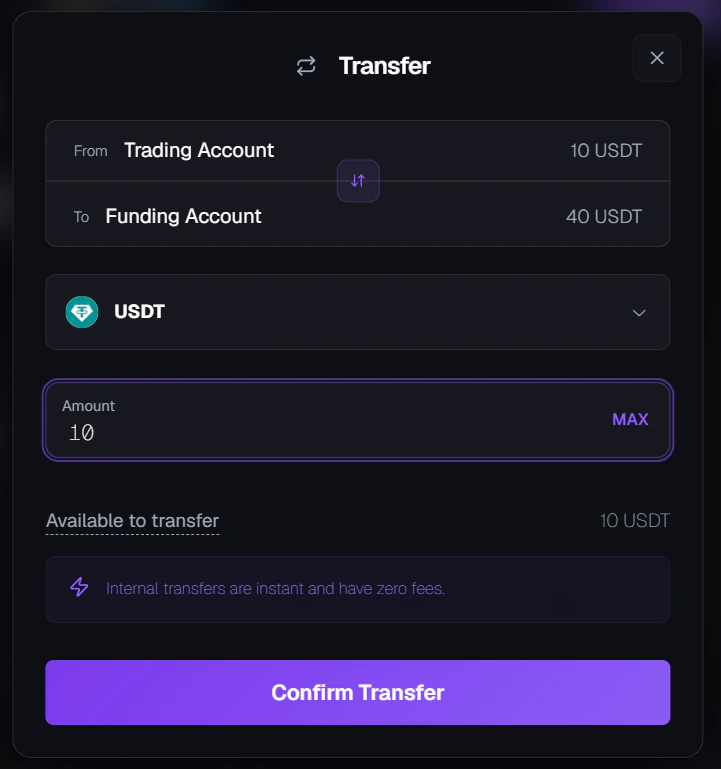 This internal transfer is **instant and free of charge**. If you transferred USDC or USDT, you must sell them for BTC using [One-Click Trade (Swap)](/help-center/one-click-trade/what-is-one-click-trade-what-assets-are-available) before you can open positions.
***
## Select a contract
1. From the main navigation, open the [**Futures**](https://roxom.com/exchange/futures) section.
2. Use the **search bar** on the top to find the perpetual contract you want to trade (for example, GOLD-BTC, US500-BTC).
**All Roxom futures trade 24/7.** However, some underlyings (like equities or commodities) have their own market hours. When the underlying market is closed:
* The **underlying price (numerator)** is frozen at its last available value.
* Bitcoin (the **denominator**) keeps trading continuously.
* As a result, the contract price (e.g., US500/BTC) can still move because BTC keeps moving, even if the underlying itself is not updating.
**See behavior during underlying market closures** in our [Rulebook](https://docs.roxom.com/rulebook/trading-hours/trading-hours-logic).
***
## Choose your order type
In the order panel, select your order type:
| Order Type | Description |
| :-------------------- | :------------------------------------------------------------------------------------------------------- |
| **Limit Order** | Set your own price; the order executes at that price or better. |
| **Market Order** | Executes immediately at the best available price. |
| **Stop-Limit Order** | Triggers a limit order once the stop price is reached. Useful for setting controlled entries or exits. |
| **Stop-Market Order** | Triggers a market order once the stop price is reached. Often used for stop-loss or breakout strategies. |
Then configure your order:
* **Side**: Long (Buy) or Short (Sell)
* **Leverage**: Up to 10x
* **Quantity / Value**: You can enter either:
* the **number of contracts** you want to trade, or
* the **order value in BTC**
This internal transfer is **instant and free of charge**. If you transferred USDC or USDT, you must sell them for BTC using [One-Click Trade (Swap)](/help-center/one-click-trade/what-is-one-click-trade-what-assets-are-available) before you can open positions.
***
## Select a contract
1. From the main navigation, open the [**Futures**](https://roxom.com/exchange/futures) section.
2. Use the **search bar** on the top to find the perpetual contract you want to trade (for example, GOLD-BTC, US500-BTC).
**All Roxom futures trade 24/7.** However, some underlyings (like equities or commodities) have their own market hours. When the underlying market is closed:
* The **underlying price (numerator)** is frozen at its last available value.
* Bitcoin (the **denominator**) keeps trading continuously.
* As a result, the contract price (e.g., US500/BTC) can still move because BTC keeps moving, even if the underlying itself is not updating.
**See behavior during underlying market closures** in our [Rulebook](https://docs.roxom.com/rulebook/trading-hours/trading-hours-logic).
***
## Choose your order type
In the order panel, select your order type:
| Order Type | Description |
| :-------------------- | :------------------------------------------------------------------------------------------------------- |
| **Limit Order** | Set your own price; the order executes at that price or better. |
| **Market Order** | Executes immediately at the best available price. |
| **Stop-Limit Order** | Triggers a limit order once the stop price is reached. Useful for setting controlled entries or exits. |
| **Stop-Market Order** | Triggers a market order once the stop price is reached. Often used for stop-loss or breakout strategies. |
Then configure your order:
* **Side**: Long (Buy) or Short (Sell)
* **Leverage**: Up to 10x
* **Quantity / Value**: You can enter either:
* the **number of contracts** you want to trade, or
* the **order value in BTC**
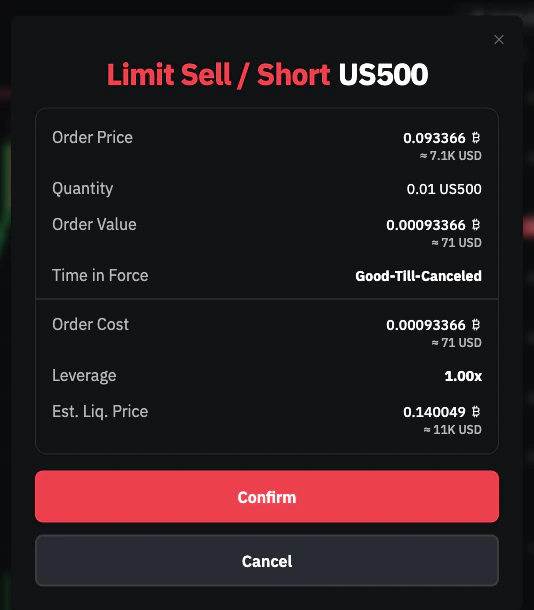 **See all order types and how they work** in the [Order Types & Execution Rules](https://docs.roxom.com/rulebook/order-types-and-execution-rules/limit-order) section of our Rulebook.
**Leverage and Risk:** Higher leverage means you control a larger position with the same margin, which increases both potential profits **and potential** losses. With more leverage, your **Margin Ratio** will rise faster as the market moves against you, bringing your position closer to liquidation.
***
## Confirm and submit your order
Before your order is sent, you'll see a **confirmation window** showing:
* Entry price
* Size & leverage
* Estimated liquidation price
* Fees
**See all order types and how they work** in the [Order Types & Execution Rules](https://docs.roxom.com/rulebook/order-types-and-execution-rules/limit-order) section of our Rulebook.
**Leverage and Risk:** Higher leverage means you control a larger position with the same margin, which increases both potential profits **and potential** losses. With more leverage, your **Margin Ratio** will rise faster as the market moves against you, bringing your position closer to liquidation.
***
## Confirm and submit your order
Before your order is sent, you'll see a **confirmation window** showing:
* Entry price
* Size & leverage
* Estimated liquidation price
* Fees
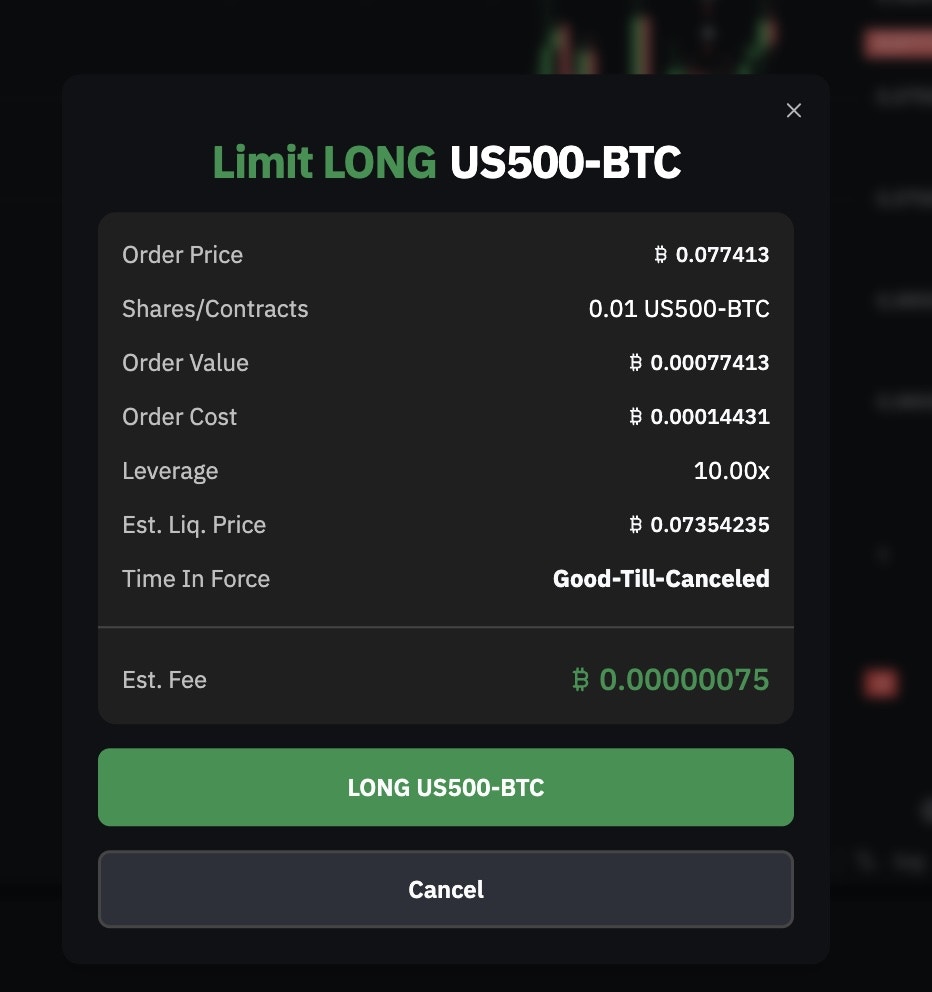 Click **Confirm** to place your order.
Always review your order details carefully before confirming.
***
## Monitor your position
Once active, your position appears in the **Open Positions** panel at the bottom of the trading interface.
Here you can track:
* **Unrealized PnL**: Your floating profit/loss
* **Margin Ratio**: Your current risk level
* **Liquidation Price**: Price at which your position will be closed automatically
* **TP/SL**: Your configured Take Profit and Stop Loss orders
**New to margin?** Start with [How margin works on Roxom](/help-center/account-basics/how-margin-works). For deeper details, see the [Margin & Risk](https://docs.roxom.com/rulebook/margin-rules/margin-ratio-and-risk-management) section of our Rulebook.
***
## Set take profit and stop loss
You can set **Take Profit (TP)** and **Stop Loss (SL)** orders directly on your open positions to automate your exit strategy.
1. In the **Open Positions** panel, click **Add** in the TP/SL column
2. Enter your Take Profit price and/or Stop Loss price
3. Select the amount of your position to close
4. Click **Confirm**
When the market reaches your trigger price, a market order is automatically placed to close your position.
You can edit or remove TP/SL orders anytime from the same modal in Open Positions. You can also view and cancel them from the **TP/SL** tab in Open Orders.
**See the complete guide on setting TP/SL** in [How to set take profit and stop loss](/help-center/roxom-derivatives/how-to-set-take-profit-and-stop-loss).
***
## Understanding PnL and UPNL
### UPNL (Unrealized Profit and Loss)
Your current profit or loss on an open position, based on the difference between the **Mark Price** and your **Entry Price**.
**For long positions:**
```
UPNL = (Mark Price − Entry Price) × Position Size
```
**For short positions:**
```
UPNL = (Entry Price − Mark Price) × Position Size
```
This value changes in real time as the market moves.
### PNL (Realized Profit and Loss)
The final profit or loss after a position is closed, including trading fees and funding payments.
***
## Closing a position
To exit your position, you have several options:
| Method | Description |
| :---------------- | :------------------------------------------------------------- |
| **Market close** | Sell (if long) or buy (if short) at the current market price. |
| **Limit close** | Place an opposite limit order at your desired price. |
| **Partial close** | Reduce your position size without closing the entire position. |
You can close your position fully or partially using either market or limit orders.
***
## Tips
**Trading hours:** Always check the contract's trading hours if it's tied to a traditional market.
**Funding times:** Keep funding times in mind. If you hold a position at the funding timestamp, you may pay or receive BTC. **Learn when funding happens and how it's calculated** in the [Funding Payments](https://docs.roxom.com/rulebook/funding-payments/funding-interval-and-timing) section of our Rulebook.
This content is for informational purposes only and does not constitute investment advice. Trading digital assets involves significant risk, including the potential loss of your entire investment. Please review our [Risk Notice](/legal/risk-notice) before trading.
***
## Related articles
Open article
Open article
Click **Confirm** to place your order.
Always review your order details carefully before confirming.
***
## Monitor your position
Once active, your position appears in the **Open Positions** panel at the bottom of the trading interface.
Here you can track:
* **Unrealized PnL**: Your floating profit/loss
* **Margin Ratio**: Your current risk level
* **Liquidation Price**: Price at which your position will be closed automatically
* **TP/SL**: Your configured Take Profit and Stop Loss orders
**New to margin?** Start with [How margin works on Roxom](/help-center/account-basics/how-margin-works). For deeper details, see the [Margin & Risk](https://docs.roxom.com/rulebook/margin-rules/margin-ratio-and-risk-management) section of our Rulebook.
***
## Set take profit and stop loss
You can set **Take Profit (TP)** and **Stop Loss (SL)** orders directly on your open positions to automate your exit strategy.
1. In the **Open Positions** panel, click **Add** in the TP/SL column
2. Enter your Take Profit price and/or Stop Loss price
3. Select the amount of your position to close
4. Click **Confirm**
When the market reaches your trigger price, a market order is automatically placed to close your position.
You can edit or remove TP/SL orders anytime from the same modal in Open Positions. You can also view and cancel them from the **TP/SL** tab in Open Orders.
**See the complete guide on setting TP/SL** in [How to set take profit and stop loss](/help-center/roxom-derivatives/how-to-set-take-profit-and-stop-loss).
***
## Understanding PnL and UPNL
### UPNL (Unrealized Profit and Loss)
Your current profit or loss on an open position, based on the difference between the **Mark Price** and your **Entry Price**.
**For long positions:**
```
UPNL = (Mark Price − Entry Price) × Position Size
```
**For short positions:**
```
UPNL = (Entry Price − Mark Price) × Position Size
```
This value changes in real time as the market moves.
### PNL (Realized Profit and Loss)
The final profit or loss after a position is closed, including trading fees and funding payments.
***
## Closing a position
To exit your position, you have several options:
| Method | Description |
| :---------------- | :------------------------------------------------------------- |
| **Market close** | Sell (if long) or buy (if short) at the current market price. |
| **Limit close** | Place an opposite limit order at your desired price. |
| **Partial close** | Reduce your position size without closing the entire position. |
You can close your position fully or partially using either market or limit orders.
***
## Tips
**Trading hours:** Always check the contract's trading hours if it's tied to a traditional market.
**Funding times:** Keep funding times in mind. If you hold a position at the funding timestamp, you may pay or receive BTC. **Learn when funding happens and how it's calculated** in the [Funding Payments](https://docs.roxom.com/rulebook/funding-payments/funding-interval-and-timing) section of our Rulebook.
This content is for informational purposes only and does not constitute investment advice. Trading digital assets involves significant risk, including the potential loss of your entire investment. Please review our [Risk Notice](/legal/risk-notice) before trading.
***
## Related articles
Open article
Open article