> ## Documentation Index
> Fetch the complete documentation index at: https://docs.roxom.com/llms.txt
> Use this file to discover all available pages before exploring further.
# How to set take profit and stop loss
> Learn how to configure TP/SL orders on your open positions to automate profit-taking and risk management.
You can now set **Take Profit (TP)** and **Stop Loss (SL)** orders directly on your open positions in Roxom. These orders help you automate your exit strategy and manage risk.
***
## Setting up TP/SL on an open position
1. Go to the **Open Positions** tab at the bottom of the trading interface
2. Find the position you want to configure
3. Click the **Add** button in the **TP/SL** column
 4. In the TP/SL modal, configure your orders:
* **Take Profit Price**: The price at which you want to secure profits
* **Stop Loss Price**: The price at which you want to limit losses
* **Amount**: Currently closes the entire position (partial close coming soon)
4. In the TP/SL modal, configure your orders:
* **Take Profit Price**: The price at which you want to secure profits
* **Stop Loss Price**: The price at which you want to limit losses
* **Amount**: Currently closes the entire position (partial close coming soon)
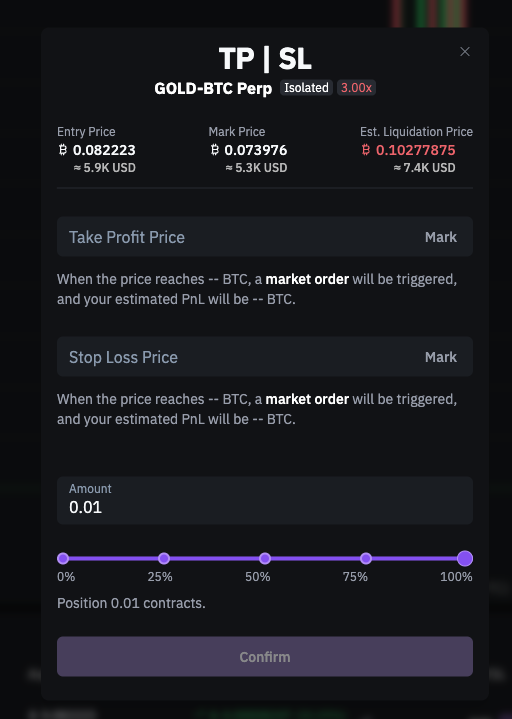 5. Click **Confirm** to save your configuration
You can set just a Take Profit, just a Stop Loss, or both at the same time.
***
## How TP/SL orders work
When the market price reaches your configured trigger price:
* A **market order** is automatically placed to close your position
* The order executes at the best available price
Since TP/SL orders execute as market orders, the final execution price may differ slightly from your trigger price, especially during high volatility.
***
## Editing or removing TP/SL orders
To modify your TP/SL configuration:
1. Go to **Open Positions**
2. Click the TP/SL value for your position
3. In the modal, you can:
* **Edit**: Change the trigger price or amount
* **Remove**: Clear the field and save to delete the order
***
## Viewing TP/SL orders
Your active TP/SL orders appear in two places:
| Location | What you can do |
| :-------------------------------- | :-------------------------------------- |
| **Open Positions** → TP/SL column | Edit or remove orders |
| **Open Orders** → TP/SL tab | View order parameters and cancel orders |
You can cancel TP/SL orders from the Open Orders tab, but to edit them you must use the Open Positions modal.
***
## Important points
* TP/SL orders are always **linked to a specific position**
* When triggered, they create a **market order** at the trigger price
* If you close the position manually, associated TP/SL orders are automatically cancelled
This content is for informational purposes only and does not constitute investment advice. Trading digital assets involves significant risk, including the potential loss of your entire investment. Please review our [Risk Notice](/legal/risk-notice) before trading.
***
## Related articles
Open article
Open article
5. Click **Confirm** to save your configuration
You can set just a Take Profit, just a Stop Loss, or both at the same time.
***
## How TP/SL orders work
When the market price reaches your configured trigger price:
* A **market order** is automatically placed to close your position
* The order executes at the best available price
Since TP/SL orders execute as market orders, the final execution price may differ slightly from your trigger price, especially during high volatility.
***
## Editing or removing TP/SL orders
To modify your TP/SL configuration:
1. Go to **Open Positions**
2. Click the TP/SL value for your position
3. In the modal, you can:
* **Edit**: Change the trigger price or amount
* **Remove**: Clear the field and save to delete the order
***
## Viewing TP/SL orders
Your active TP/SL orders appear in two places:
| Location | What you can do |
| :-------------------------------- | :-------------------------------------- |
| **Open Positions** → TP/SL column | Edit or remove orders |
| **Open Orders** → TP/SL tab | View order parameters and cancel orders |
You can cancel TP/SL orders from the Open Orders tab, but to edit them you must use the Open Positions modal.
***
## Important points
* TP/SL orders are always **linked to a specific position**
* When triggered, they create a **market order** at the trigger price
* If you close the position manually, associated TP/SL orders are automatically cancelled
This content is for informational purposes only and does not constitute investment advice. Trading digital assets involves significant risk, including the potential loss of your entire investment. Please review our [Risk Notice](/legal/risk-notice) before trading.
***
## Related articles
Open article
Open article