> ## Documentation Index
> Fetch the complete documentation index at: https://docs.roxom.com/llms.txt
> Use this file to discover all available pages before exploring further.
# How to delete your Roxom account
> Learn how to permanently delete your Roxom account, what the requirements are, and what to expect after deletion.
If you want to permanently close your Roxom account, you can request a **full account deletion**. This is an irreversible action, once your account is deleted, it cannot be recovered.
***
## Requirements before deleting your account
Before you can proceed with account deletion, you must meet the following conditions:
* **No open positions**: close all active trades
* **No open orders**: cancel all pending orders
* **Zero account balance**: withdraw all remaining funds
If any of these conditions are not met, you will need to resolve them before the deletion can be processed.
***
## How to delete your account
1. From the header, open your **profile menu** and go to **Security**.
2) Scroll down to the **Account Management** section and click **Delete Account**
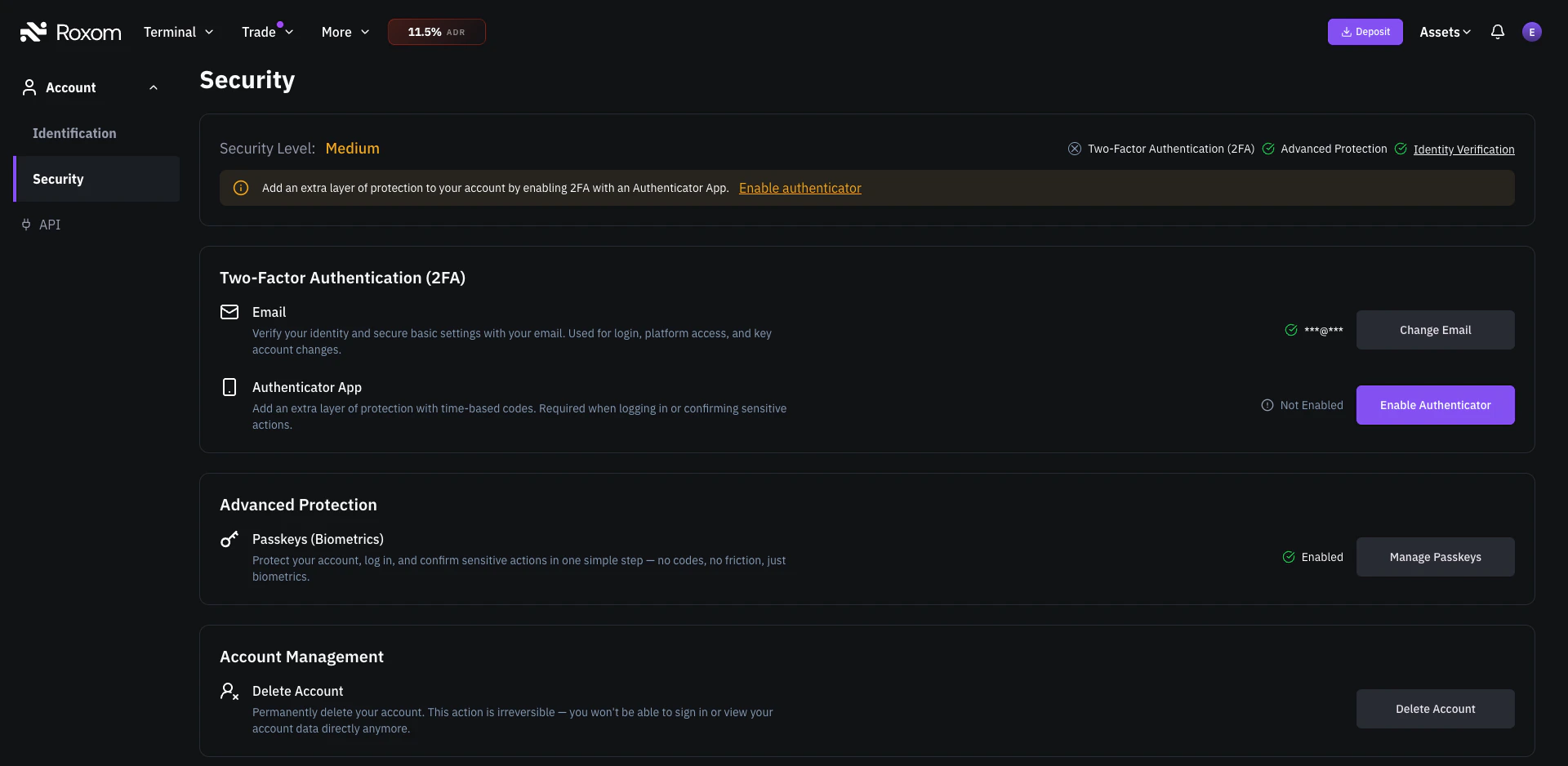 3. Review the information on the confirmation screen
4. Click **Continue** to start the deletion process
3. Review the information on the confirmation screen
4. Click **Continue** to start the deletion process
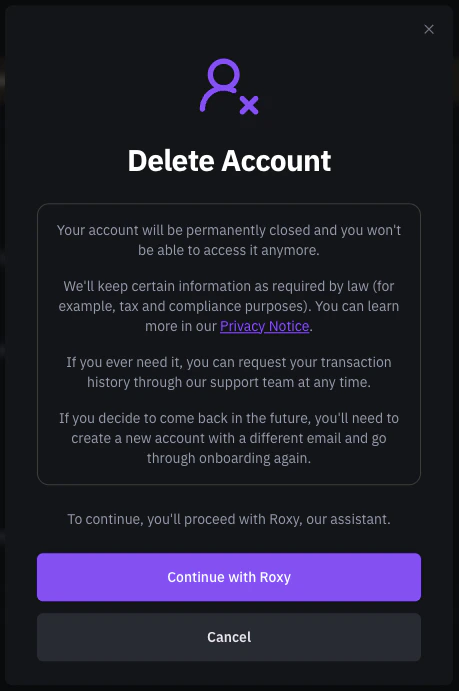 5. You will be guided through the final steps of the deletion process:
* You may be asked to share **feedback** about why you are leaving
* You can choose to be **transferred to a support agent** if you need further assistance
* Once confirmed, the deletion request will be processed
***
## What happens after your account is deleted?
* Your account is **permanently closed**: you will no longer be able to sign in or access it
* Certain information will be retained as required by law (for example, tax and compliance purposes). You can learn more in our [Privacy Notice](https://roxom.com/privacy)
* You can request your transaction history through our support team at any time
***
## Can I come back to Roxom after deleting my account?
Yes, but you will need to:
* **Register with a different email address**: the original email can never be used again on Roxom
* **Complete the KYC (identity verification) process again** from scratch
* Go through the full onboarding process as a new user
***
## Important reminders
* **Account deletion is permanent and irreversible**: make sure this is what you want before proceeding
* **Never share your login codes or security credentials with anyone**
* **Roxom will never ask for your Passkey, Authenticator App code, or email OTP**
* The only official channels to manage your account are:
* [**help@roxom.com**](mailto:help@roxom.com), our official support email
* The in-platform support assistant
If you receive a suspicious message or have doubts, contact us directly through these channels.
***
## Related articles
Open article
How to verify Roxom communications and avoid phishing.
5. You will be guided through the final steps of the deletion process:
* You may be asked to share **feedback** about why you are leaving
* You can choose to be **transferred to a support agent** if you need further assistance
* Once confirmed, the deletion request will be processed
***
## What happens after your account is deleted?
* Your account is **permanently closed**: you will no longer be able to sign in or access it
* Certain information will be retained as required by law (for example, tax and compliance purposes). You can learn more in our [Privacy Notice](https://roxom.com/privacy)
* You can request your transaction history through our support team at any time
***
## Can I come back to Roxom after deleting my account?
Yes, but you will need to:
* **Register with a different email address**: the original email can never be used again on Roxom
* **Complete the KYC (identity verification) process again** from scratch
* Go through the full onboarding process as a new user
***
## Important reminders
* **Account deletion is permanent and irreversible**: make sure this is what you want before proceeding
* **Never share your login codes or security credentials with anyone**
* **Roxom will never ask for your Passkey, Authenticator App code, or email OTP**
* The only official channels to manage your account are:
* [**help@roxom.com**](mailto:help@roxom.com), our official support email
* The in-platform support assistant
If you receive a suspicious message or have doubts, contact us directly through these channels.
***
## Related articles
Open article
How to verify Roxom communications and avoid phishing.