> ## Documentation Index
> Fetch the complete documentation index at: https://docs.roxom.com/llms.txt
> Use this file to discover all available pages before exploring further.
# How to generate API keys
> Learn how to create, manage, and secure your Roxom API keys to access the trading API.
**Beta feature**: API key management is currently being rolled out progressively. If you don't see the **API** option in your profile menu, it means this feature hasn't been enabled for your account yet. No action is needed, it will become available as the rollout continues.
API keys allow you to access Roxom programmatically, automate trading strategies, connect with third-party platforms, and build custom applications.
In this guide, you'll learn:
* How to access the API section
* How to generate a new API key
* How to manage your existing keys
* Security best practices
***
## Prerequisites
Before generating an API key, make sure you have:
* A verified Roxom account with completed [KYC](/help-center/kyc/how-to-complete-your-account-verification-kyc)
* At least one security method configured ([Passkey or Authenticator App](/help-center/security-access/how-to-secure-my-roxom-account))
***
## Access the API section
1. Click your **profile icon** in the top-right corner of the screen
2. Select **API** from the dropdown menu
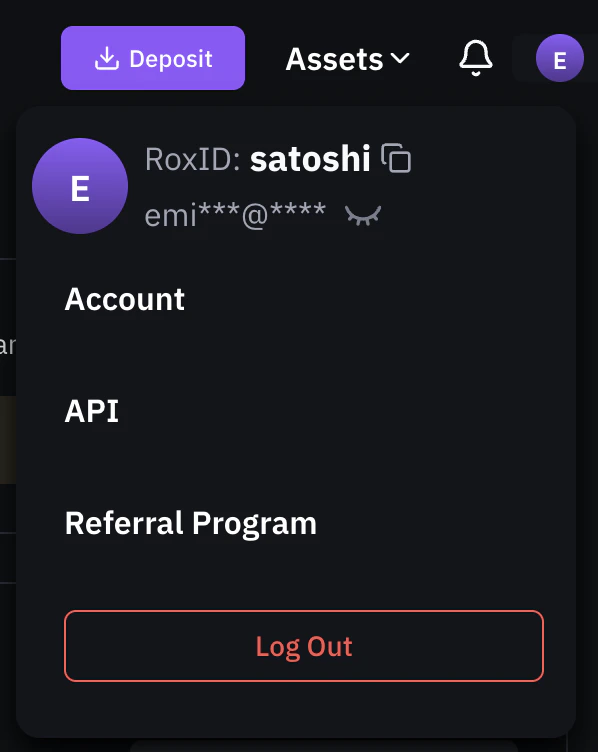 This takes you to the [API management page](https://roxom.com/user/api), where you can generate and manage your API keys.
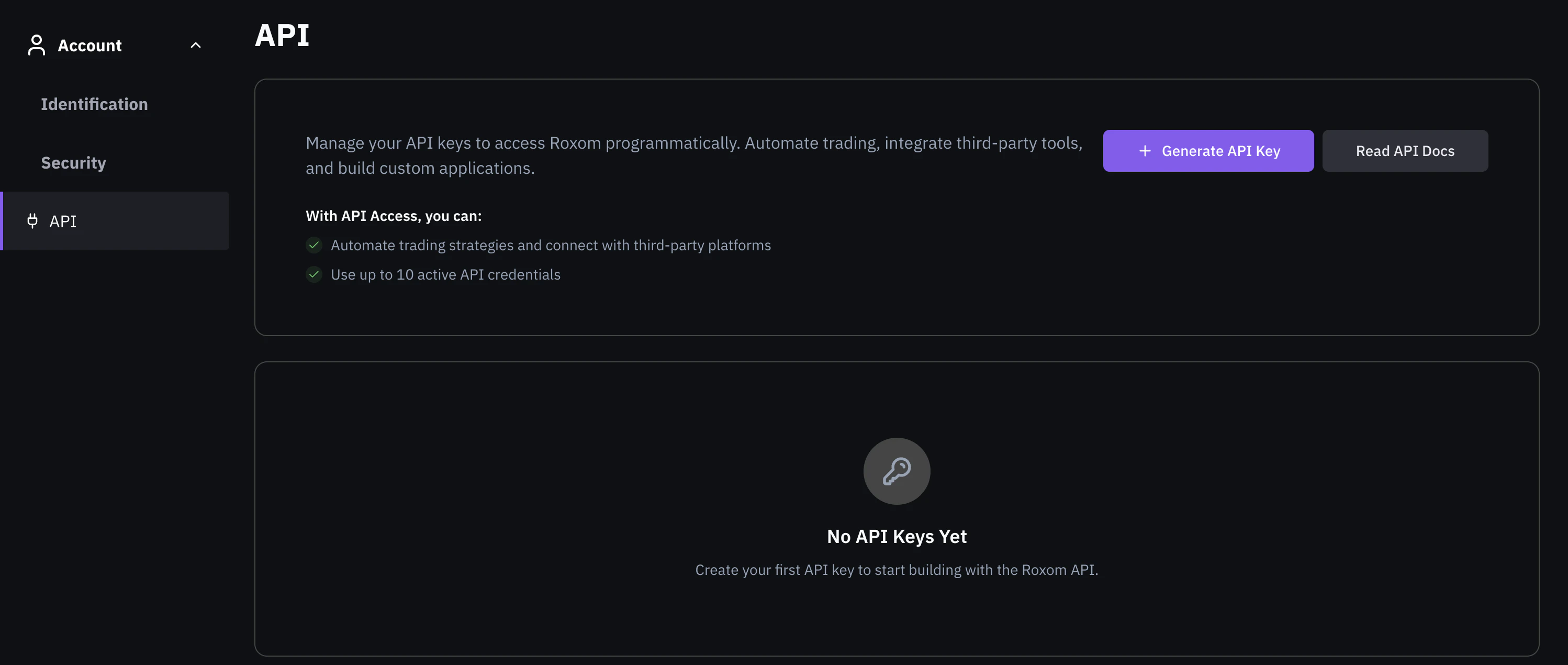 You can have up to **10 active API credentials** at any time.
***
## Generate a new API key
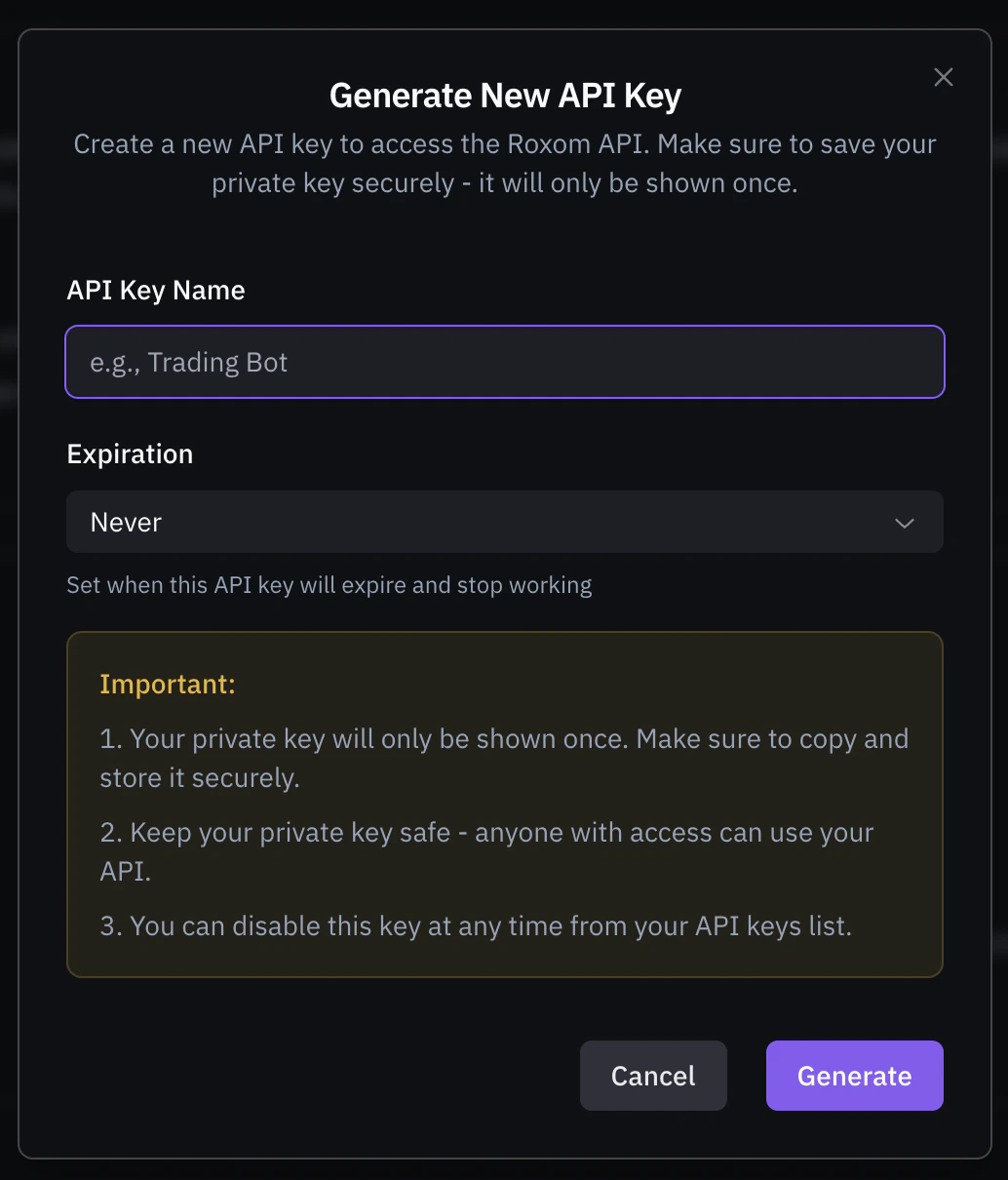
1. Click **+ Generate API Key**
2. In the modal, enter a **name** for your key (e.g., "Trading Bot")
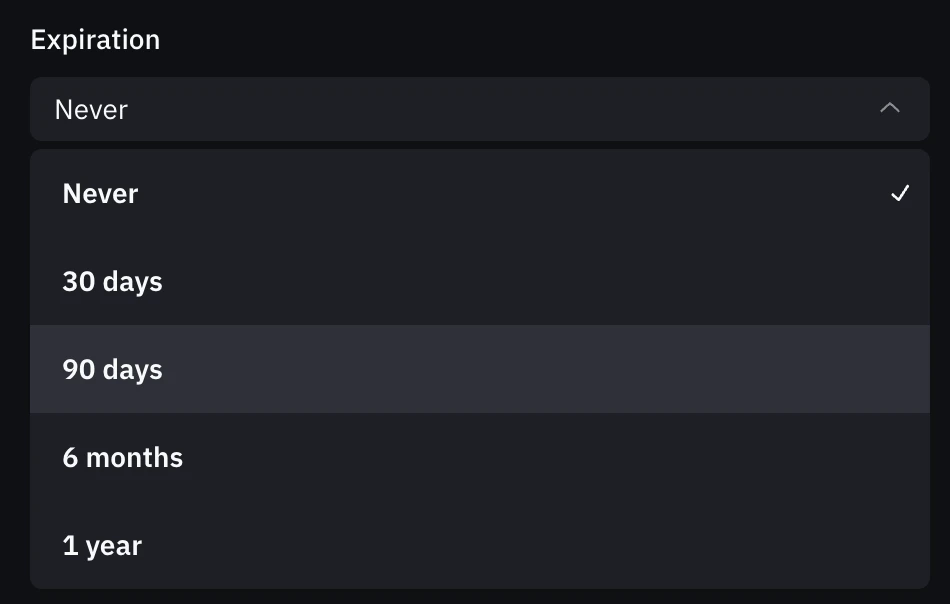
3. Choose an **expiration** period:
* **Never** (no expiration)
* **30 days**
* **90 days**
* **6 months**
* **1 year**
You can have up to **10 active API credentials** at any time.
***
## Generate a new API key
1. Click **+ Generate API Key**
2. In the modal, enter a **name** for your key (e.g., "Trading Bot")
3. Choose an **expiration** period:
* **Never** (no expiration)
* **30 days**
* **90 days**
* **6 months**
* **1 year**
 4. Click **Generate**
5. **Verify your identity** using your configured security method (Passkey or Authenticator App + email code)
6. **Save your private key**: it will only be shown once
Your private key is displayed only once after generation. Copy and store it securely. If you lose it, you will need to generate a new API key.
***
## Manage your API keys
Once created, your API keys appear on the API management page. Each key shows its:
* **Name** and **status** (Active/Disabled)
* **Key ID** (e.g., `rxk_key_83b3...`)
* **Created date**, **last used date**, and **expiration**
4. Click **Generate**
5. **Verify your identity** using your configured security method (Passkey or Authenticator App + email code)
6. **Save your private key**: it will only be shown once
Your private key is displayed only once after generation. Copy and store it securely. If you lose it, you will need to generate a new API key.
***
## Manage your API keys
Once created, your API keys appear on the API management page. Each key shows its:
* **Name** and **status** (Active/Disabled)
* **Key ID** (e.g., `rxk_key_83b3...`)
* **Created date**, **last used date**, and **expiration**
 ### Available actions
From the three-dot menu on each key, you can:
* **Rename**: change the display name of the key
* **Disable**: deactivate the key without deleting it
***
## Security best practices
* Use **environment variables** to store your API key and private key
* **Never commit** keys to version control or share them in public repositories
* **Never share** your private key with anyone, Roxom will never ask for it
* Set an expiration date for keys used in temporary integrations
* Rotate keys regularly as part of your security policy
* Check the **last used** date to identify inactive keys
* **Disable** keys that are no longer in use
***
## Next steps
Once you have your API key, you're ready to start building:
Learn how to sign your API requests using your private key
Explore the full REST API documentation
***
## Need help?
Still have questions? You can speak to **Roxy**, our AI support assistant, available 24/7 in the chat bubble at the bottom right of your screen.
You can also contact our support team directly at [help@roxom.com](mailto:help@roxom.com).
### Available actions
From the three-dot menu on each key, you can:
* **Rename**: change the display name of the key
* **Disable**: deactivate the key without deleting it
***
## Security best practices
* Use **environment variables** to store your API key and private key
* **Never commit** keys to version control or share them in public repositories
* **Never share** your private key with anyone, Roxom will never ask for it
* Set an expiration date for keys used in temporary integrations
* Rotate keys regularly as part of your security policy
* Check the **last used** date to identify inactive keys
* **Disable** keys that are no longer in use
***
## Next steps
Once you have your API key, you're ready to start building:
Learn how to sign your API requests using your private key
Explore the full REST API documentation
***
## Need help?
Still have questions? You can speak to **Roxy**, our AI support assistant, available 24/7 in the chat bubble at the bottom right of your screen.
You can also contact our support team directly at [help@roxom.com](mailto:help@roxom.com).