

How to place and manage an order on Roxom
Step-by-step guide to opening, monitoring, and closing futures positions.
Follow this step-by-step guide to open, monitor, and close a futures position on Roxom with real examples from the platform.
Move funds to your Unified Trading Account (UTA)
Futures positions use BTC for margin and settlement. You can transfer BTC, USDC, or USDT from your Funding Account to the UTA, but only BTC can back a futures position.
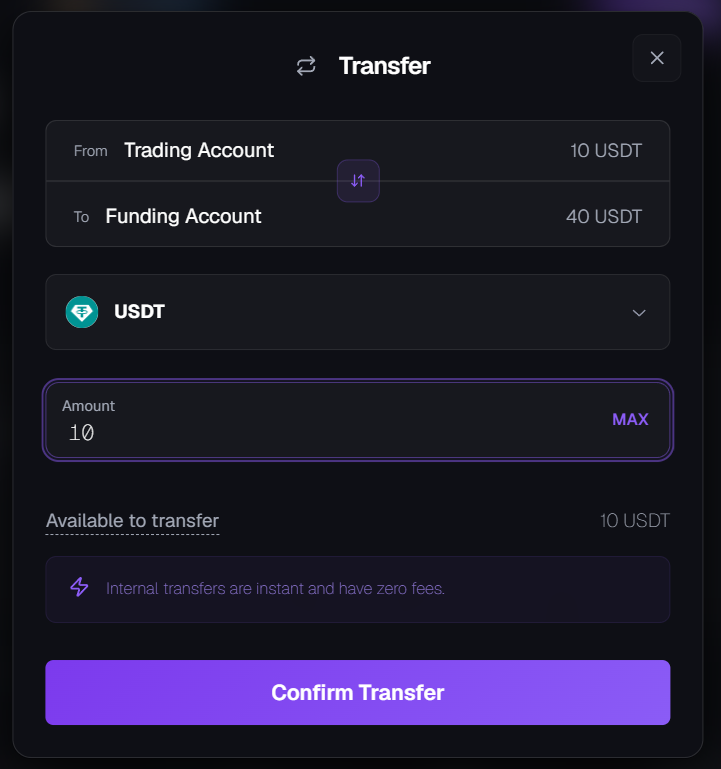
If your funds are in the Funding Account, transfer them first:
- Go to Portfolio
- Click Funding Account
- Select: → Transfer From: Funding
- To: Unified Trading
- Choose the currency and enter the amount
- Confirm Transfer
Select a contract
- From the main navigation, open the Futures section.
- Use the search bar on the top to find the perpetual contract you want to trade (for example, GOLD-BTC, US500-BTC).
Choose your order type
In the order panel, select your order type:
| Order Type | Description |
|---|---|
| Limit Order | Set your own price; the order executes at that price or better. |
| Market Order | Executes immediately at the best available price. |
| Stop-Limit Order | Triggers a limit order once the stop price is reached. Useful for setting controlled entries or exits. |
| Stop-Market Order | Triggers a market order once the stop price is reached. Often used for stop-loss or breakout strategies. |
Then configure your order:
- Side: Long (Buy) or Short (Sell)
- Leverage: Up to 10x
- Quantity / Value: You can enter either:
- the number of contracts you want to trade, or
- the order value in B
See all order types and how they work in the Order Types & Execution Rules section of our Rulebook.
Confirm and submit your order
Before your order is sent, you'll see a confirmation window showing:
- Entry price
- Size & leverage
- Estimated liquidation price
- Fees
Click Confirm to place your order.
Monitor your position
Once active, your position appears in the Open Positions panel at the bottom of the trading interface.
Here you can track:
- Unrealized PnL: Your floating profit/loss
- Margin Ratio: Your current risk level
- Liquidation Price: Price at which your position will be closed automatically
- TP/SL: Your configured Take Profit and Stop Loss orders
Set take profit and stop loss
You can set Take Profit (TP) and Stop Loss (SL) orders directly on your open positions to automate your exit strategy.
- In the Open Positions panel, click Add in the TP/SL column
- Enter your Take Profit price and/or Stop Loss price
- Select the amount of your position to close
- Click Confirm
When the market reaches your trigger price, a market order is automatically placed to close your position.
Understanding PnL and UPNL
UPNL (Unrealized Profit and Loss)
Your current profit or loss on an open position, based on the difference between the Mark Price and your Entry Price.
For long positions:
UPNL = (Mark Price − Entry Price) × Position SizeFor short positions:
UPNL = (Entry Price − Mark Price) × Position SizeThis value changes in real time as the market moves.
PNL (Realized Profit and Loss)
The final profit or loss after a position is closed, including trading fees and funding payments.
Closing a position
To exit your position, you have several options:
| Method | Description |
|---|---|
| Market close | Sell (if long) or buy (if short) at the current market price. |
| Limit close | Place an opposite limit order at your desired price. |
| Partial close | Reduce your position size without closing the entire position. |
You can close your position fully or partially using either market or limit orders.
Tips
Related articles
Last modified on