

Security
HP: Historical Prices
Historical prices: daily, weekly or monthly open, high, low, close and volume.
Historical Prices lists a security’s OHLCV history (open, high, low, close, volume) by day, week or month.
HP follows its link group.
Aliases: HIST, OHLC
How to use HP
| You type | Result |
|---|---|
NVDA HP ENTER | Nvidia’s price history. |
Options
From the window menu: PERIOD (daily, weekly, monthly) and Export CSV (Pro).
Window menu
Open ▾ in the title bar (or right-click the window) for HP’s options:
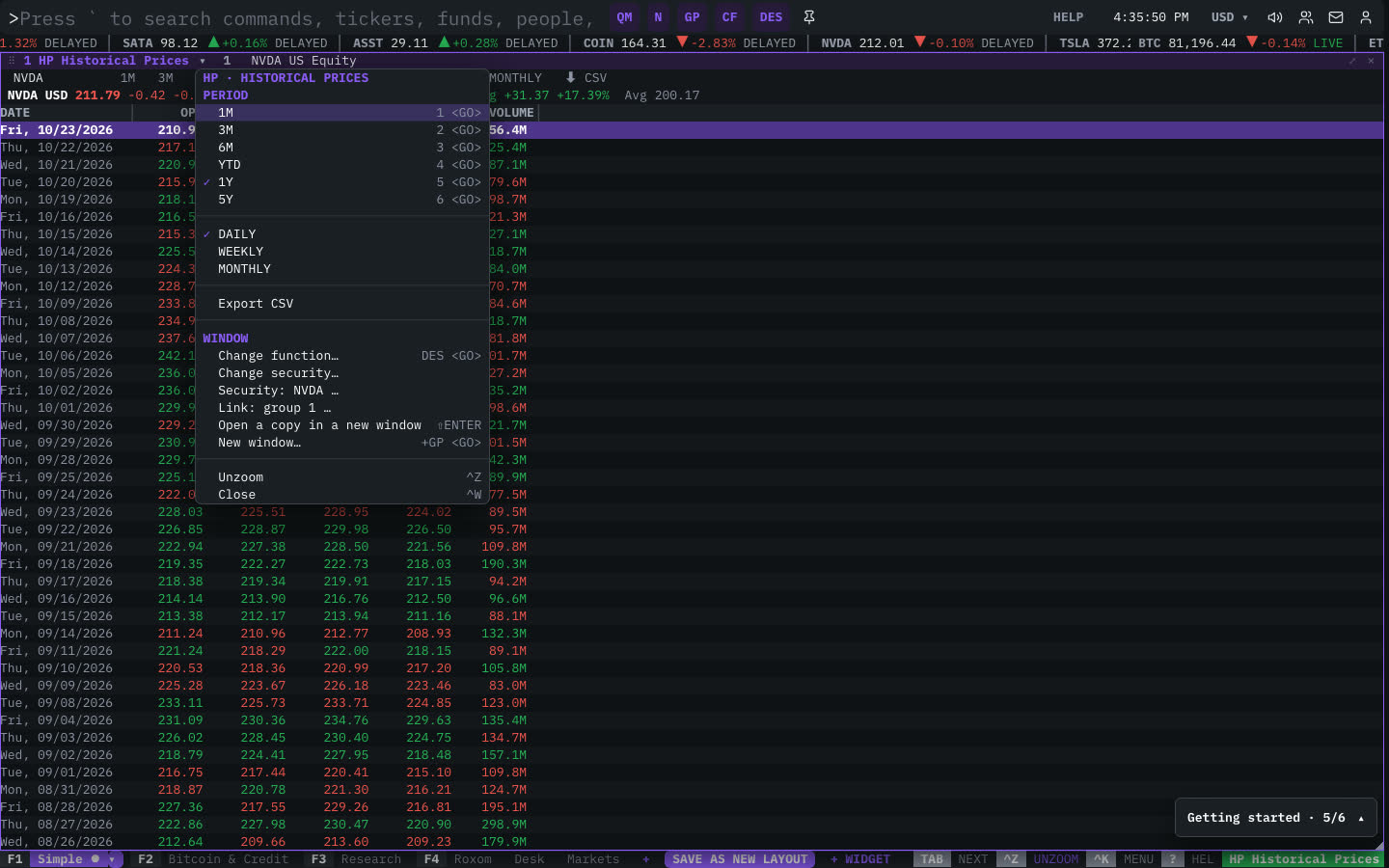
| Menu item | Shortcut |
|---|---|
| Period | |
| 1M | 1 <GO> |
| 3M | 2 <GO> |
| 6M | 3 <GO> |
| YTD | 4 <GO> |
| 1Y | 5 <GO> |
| 5Y | 6 <GO> |
| DAILY | |
| WEEKLY | |
| MONTHLY | |
| Export CSV |
The menu also has the standard window actions: change function, change security, link, open a copy, zoom and close.
Plan limits
| Guest | Free | Pro | |
|---|---|---|---|
| Days shown | 30 | 365 | All |
| CSV export | — | — | ✓ |
See Plans and access.
Related functions
FAQ
What does HP do?
Daily, weekly, monthly OHLCV table, CSV.
How do I open HP?
Type HP on the command line and press ENTER. To open it in a new window, type +HP or press ⇧ENTER. Add a ticker first to load a specific security, for example NVDA HP.
How far back can I see?
Guests see 30 days, free accounts 365 days and Pro the full history.
Last modified on