

Getting started
What is the difference between Classic and Desk?
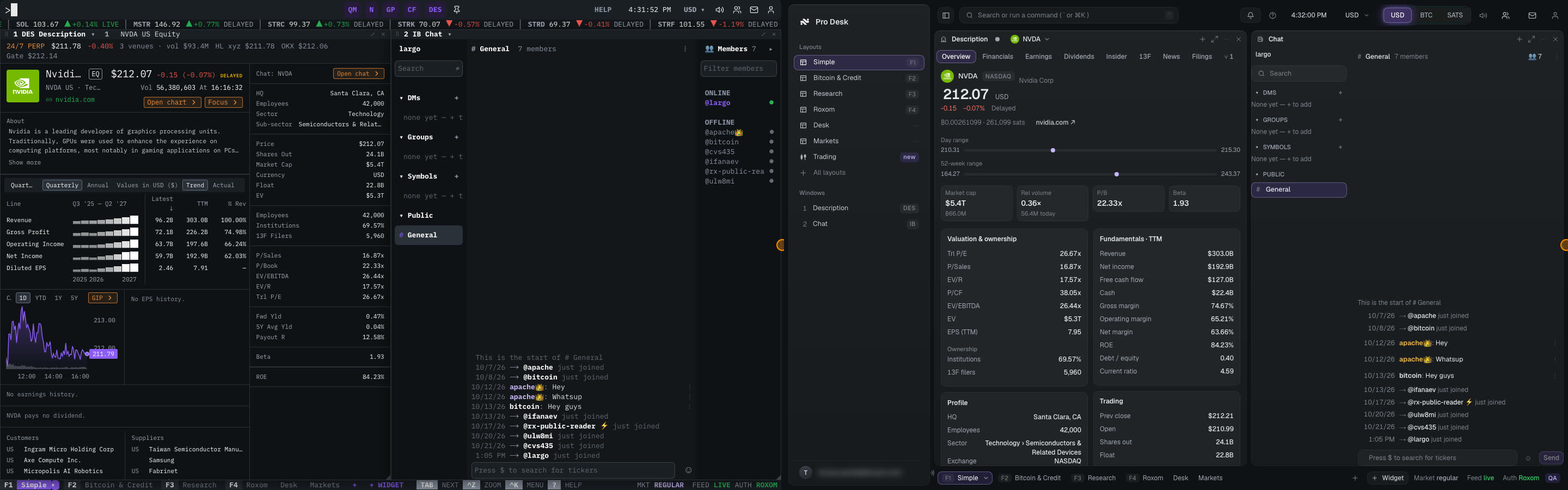
Roxom Pro has two front ends, Classic and Desk. They share the same functions, commands, layouts and account.
Roxom Pro comes in two front ends. Both run the same functions with the same codes, use the same command line and layouts, and trade on the same Roxom account. Pick the one you prefer; you can switch at any time.
| Classic | Desk | |
|---|---|---|
| Look | Keyboard-first terminal with a fixed character grid | Floating glass windows with a sidebar |
| Command line | Always visible at the top left | Opens with ⌘/Ctrl + K |
| Layouts | Tabs in the bottom bar | Sidebar list and tabs in the status bar |
| Open windows | Window numbers in each title (#2) | Listed in the sidebar under Windows |
| Display currency | USD ▾ menu in the top bar | Denomination switch in the top bar |
| Availability | Everyone, including guests | Pro (while Desk is new) |
How to switch
- Type
DESKorCLASSICon the command line and press ENTER. - Or open the profile menu (top right) and select Switch to Desk / Switch to Classic.
- Or open Settings and change Front end.
Roxom Pro remembers your choice on your account, so the next time you open the terminal it starts in the front end you used last.
Related articles
Last modified on