

Getting started
How do linked windows work?
Link groups, Follow selection and Pinned: control which windows change together when you pick a ticker.
Windows in Roxom Pro can be linked so they all follow the same ticker. Pick a name in your watchlist and the chart, profile, news and trade ticket on the same link group switch to it.
Link options
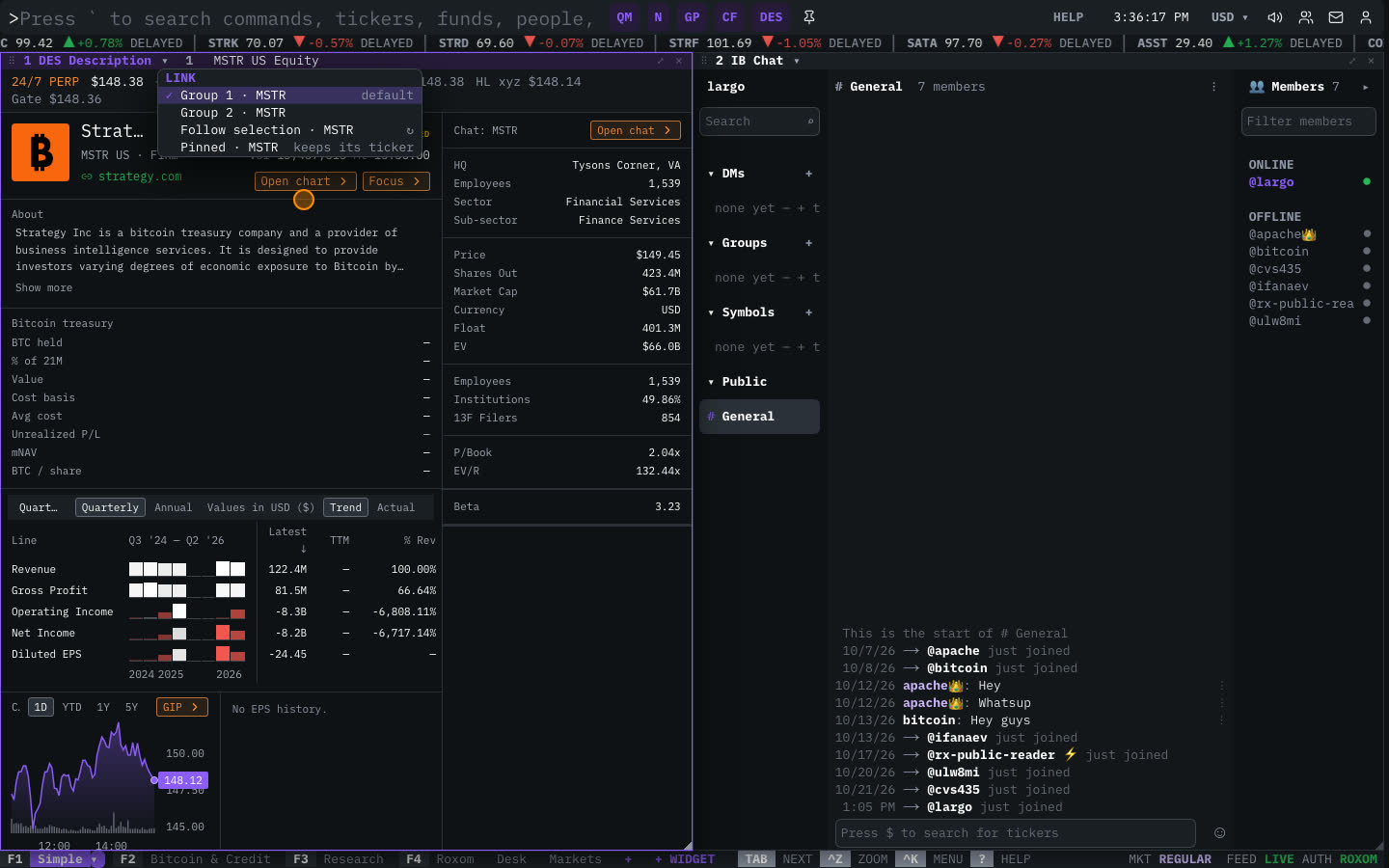
Each window that shows a single security has a colored link badge in its title bar. Click the badge, or open ▾ → Link: …, to choose:
| Option | Behavior |
|---|---|
| Group 1–9 | The window follows the ticker of that group. Each group has its own color. Group 1 is the default. |
| ↻ Follow selection | The window follows the last ticker you picked anywhere, in any group. |
| Pinned | The window keeps its own ticker and ignores the others. |
How to change the ticker
- Type a ticker and press ENTER (
MSTR): every window in the focused window’s group switches to it. - Click a name twice in the Quote Monitor (
QM), or select it and press ENTER. - Use ▾ → Security: … → Recent or Search for another… on a single window.
- Right-click a ticker anywhere and choose Load … in linked windows.
Which functions follow the link
Functions that show a single security follow their link group, for example: DES, GP, GIP, Q, OB, DOM, TAS, FA, GF, HDS, ATLAS, CF, TS, DVDY, HP, HMS, GR, OVME, ALLQ, DC and the trade ticket TKT. Lists and market-wide functions (such as N, MOST or BTCT) don’t.
Related articles
Last modified on