

Tools
How to keep a chart journal
Write notes on your charts and find them again in JRNL, by day, with #tags, pins and search.
Every text, note and callout you add to a chart in Roxom Pro is saved to your Chart Journal (JRNL). The journal lists them day by day so you can review your thinking and jump straight back to the chart.
How to add a note to a chart
- Open a chart
Type a ticker and
GP(for exampleMSTR GP), orGIPfor the intraday chart. - Add a text, note or callout
Pick the text, note or callout tool from the chart’s drawing tools and click where you want it. Write your note. Add
#tags(for example#thesisor#earnings) to group notes. - It's saved automatically
The note appears in your journal under today’s date, linked to that ticker and the point on the chart.
How to use the journal
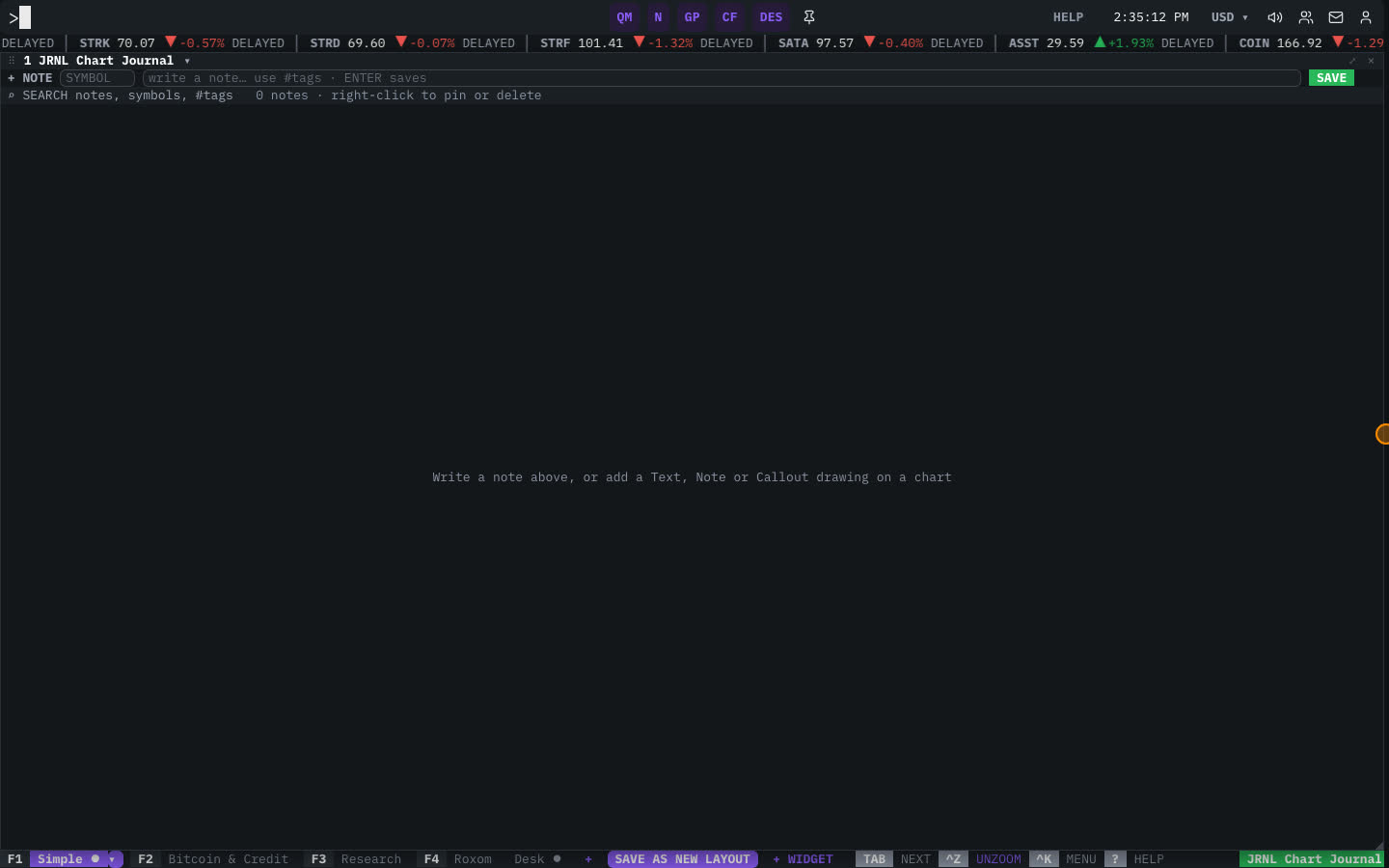
Type JRNL to open it.
- Notes are grouped by day, newest first.
- Search finds notes by text, ticker or
#tag. - Pinned notes stay at the top.
- Select a note and press ENTER to jump back to that ticker on the chart.
- Right-click a note for Open on chart, Pin and Delete.
Related articles
Last modified on