

Getting started
How to use and save layouts
Open built-in layouts, arrange windows and save your own layouts in Roxom Pro.
A layout is a set of windows arranged on screen. Roxom Pro comes with ready-made layouts for common workflows, and you can save your own. Open layouts appear as tabs in the bottom bar.
Built-in layouts
The first four open as tabs by default and have their own keys:
| Key | Layout | What’s in it |
|---|---|---|
| F1 | Simple | Company profile beside chat. |
| F2 | Bitcoin & Credit | Digital credit, treasuries, ETF flows, the bitcoin cockpit and credit yield, with chat. |
| F3 | Research | One company in depth: profile, graph fundamentals, statements and holders, with chat. |
| F4 | Roxom | Trade on Roxom: chart, heatmap, holdings, account, BLOC and ticket, with chat. |
More layouts are in the gallery (type LP or select + in the bottom bar):
| Layout | What’s in it |
|---|---|
| Desk | Watchlist, chart, profile, treasuries, news and ticket, all linked. |
| Default | Digital credit, watchlist, news and depth. |
| Digital Credit | Big digital-credit board with quotes. |
| Trading | Watchlist, news, chart with divergence and peers, book, ticket and company card, all on one ticker. |
| Markets | The morning overview: indexes, movers, heatmap, news. |
| Company | One company in depth: profile, financials, style factors, filings, holders, supply chain. |
| Calls | Earnings calls: transcripts beside the profile, statements, revenue mix and chart. |
| Income | Digital credit, dividend yield, ex-dates and bonds. |
| Wallet | Everything you own, earn, deposits and your credit line. |
| Tape | Intraday trading: chart, depth, prints, every venue, alarms. |
| Bitcoin | Cockpit, ETF flows, treasuries, on-chain metrics, mempool, crypto markets, DeFi. |
| Crypto Derivatives | Perps, options, liquidations, tape, cross-venue quotes and the Hyperliquid 24/7 board. |
| Macro & Events | Economic, earnings and IPO calendars with FX, commodities and 24/7 perps. |
| Quant | Screen, compare, pair ratios, price history and options math. |
| Predictions | Kalshi markets, detail, movers and the news behind them. |
| Situation Room | World map, live TV, webcams, exchange hours and chat. |
How to open a layout
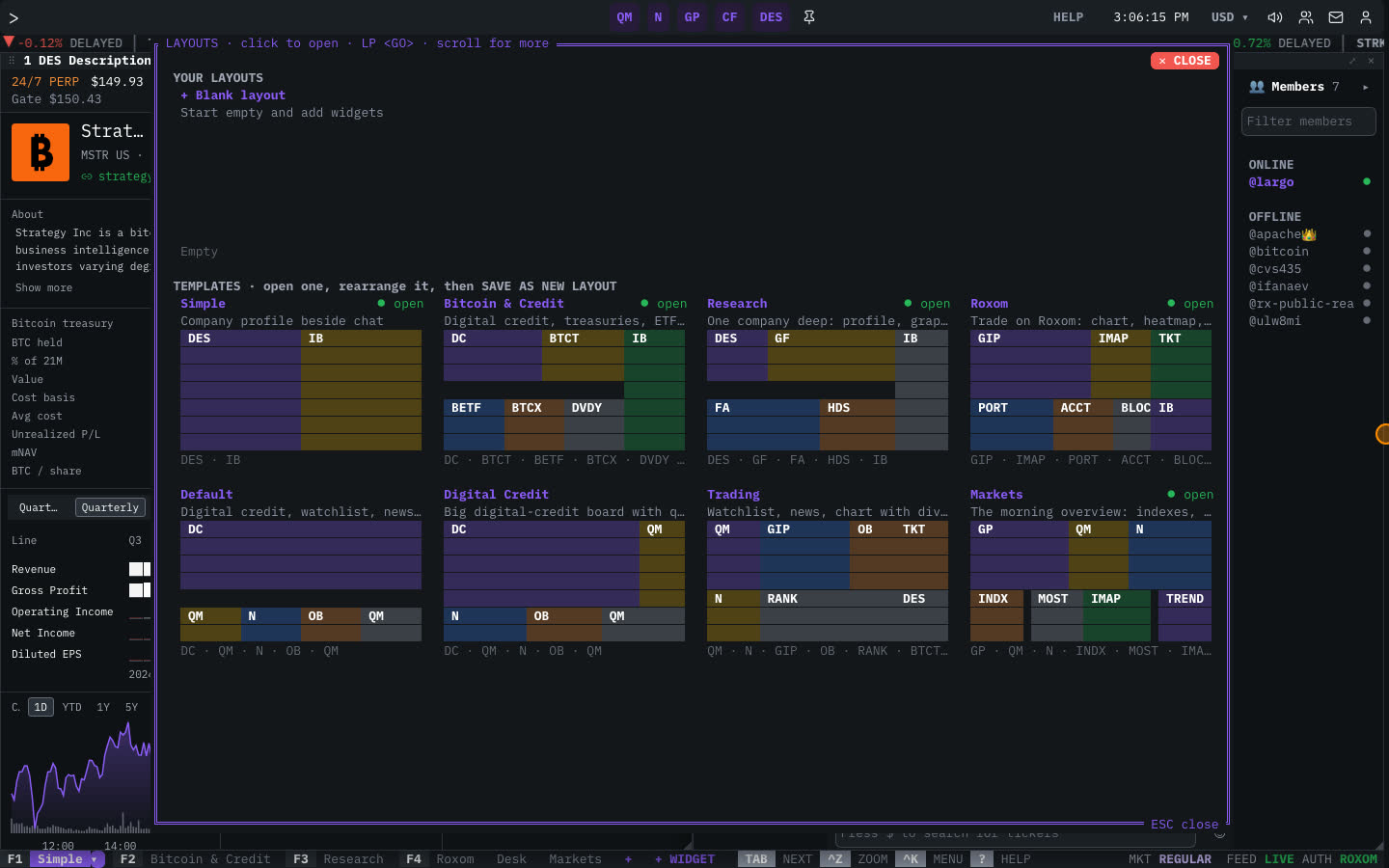
- Press F1–F4, or click a tab in the bottom bar.
- Type
LPand click a layout in the gallery. - Type
LPand the name:LP MARKETS,LP TAPE. The start of a name is enough when it matches only one layout (LP BIT).
How to arrange windows
- Add a window: type
+and a code (+GP), press ⇧ + ENTER after a command, or select + WIDGET. - Change a window’s function: focus it and type a code, or use ▾ → Change function…
- Move: drag the title bar. Resize: drag the ◢ corner.
- Zoom: double-click the title bar or press Ctrl + Z.
- Close: select × or press Ctrl + W.
How to save your own layout
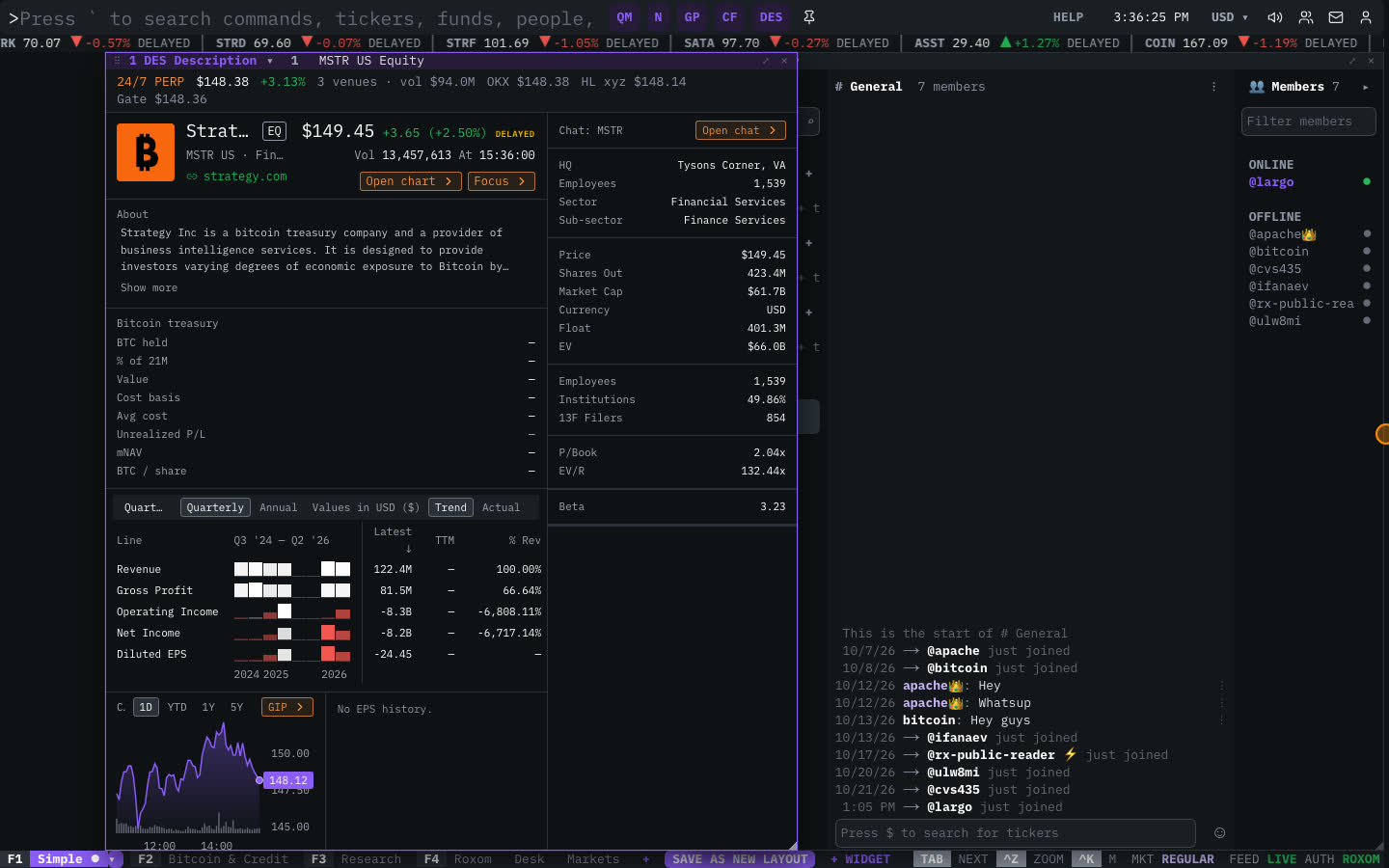
When you change a built-in layout, its tab shows a dot (●) and SAVE AS NEW LAYOUT appears in the bottom bar.
- Select SAVE AS NEW LAYOUT, or type
LP SAVEfollowed by a name, for exampleLP SAVE MY MORNING. - Press ENTER. Your layout opens as a new tab.
To manage your layouts, use the ▾ on the active tab or these commands:
| Command | What it does |
|---|---|
LP SAVE NAME | Saves the current windows as a new layout. |
LP RENAME NAME | Renames the current layout. |
LP DELETE | Deletes the current layout (your own layouts only). |
LP RESET | Restores a built-in layout to its original windows. |
Related articles
Last modified on