

Getting started
Tour of the Roxom Pro interface
The top bar, ticker strip, windows, layout tabs and status bar of the Roxom Pro terminal.
The Roxom Pro terminal has four areas: the top bar, the ticker strip, the windows in the middle and the bottom bar.
Top bar

From left to right:
- Command line (
>): where you type tickers and function codes. Press ` or ⌘/Ctrl + K to jump to it from anywhere. See Using the command line. - Pinned functions: one-click buttons such as
QM,N,GP,CFandDES. Select the pin icon to pin or unpin any function. - HELP: the list of commands and shortcuts. It also has Take the tour, which replays the first-run guide.
- Clock: select it to see world clocks and open the exchange map (
MAP). - Display currency (USD ▾): prices across every window follow one display currency. Choose USD, EUR, GBP, JPY, CHF, AUD, CAD, BTC or SATS.
- Audio: read breaking headlines and new filings out loud.
- Buddies, Messages: who is online and your unread chat messages.
- Profile: Profile, Billing, Settings, switch to Desk or Classic, Take the tour, Layouts · skin, and Logout. Signed out, this shows LOGIN.
Ticker strip
A scrolling strip of live prices under the top bar. Each item shows the last price, the change and whether it is LIVE or DELAYED. Right-click a ticker for its actions, and use Add to ticker strip on any ticker menu to add your own.
Windows
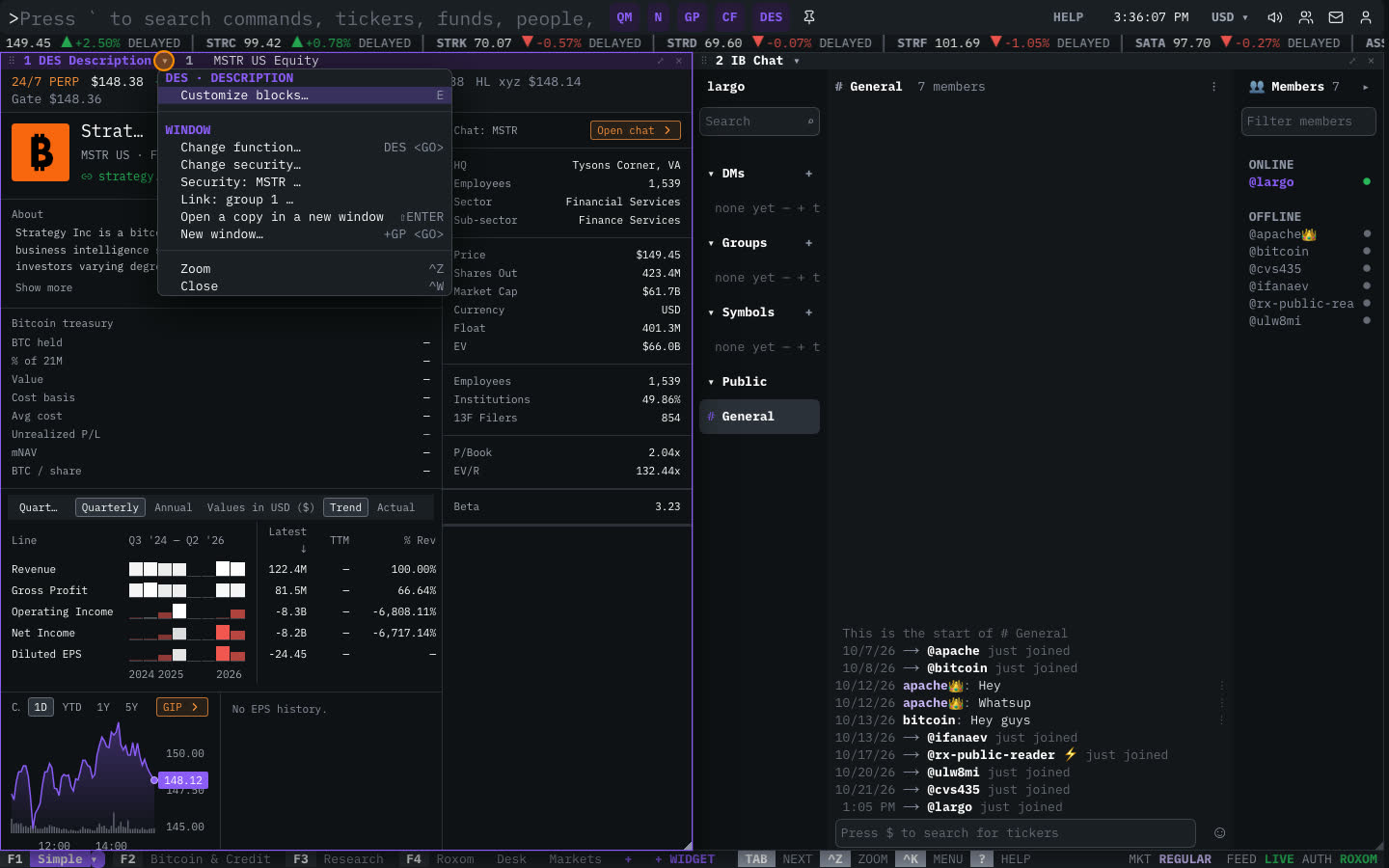
Each window runs one function. Its title bar shows:
- The window number (use
#2to focus window 2) and the function code and name, for example2 GP Chart. - ▾: the window menu, with the function’s own options (ranges, sorting, filters, export) and window actions (change function, change security, link, open a copy, zoom, close).
- The link badge and the security the window is showing. See Linking windows.
- ⤢ zoom and × close.
Drag the title bar to move a window, drag the ◢ corner to resize it, and double-click the title bar to zoom it to full screen.
Bottom bar

- Layout tabs:
F1 Simple,F2 Bitcoin & Credit,F3 Research,F4 Roxomand any layouts you opened or saved. ▾ on the active tab saves, renames, duplicates or closes it. - +: the layout gallery.
- SAVE AS NEW LAYOUT: appears when you change a built-in layout.
- + WIDGET: add a window with any function.
- Key hints:
TABnext window,^Zzoom,^Kmenu,?help. - Status:
MKT(the US market session, for example REGULAR or CLOSED),FEED(market-data connection, LIVE when connected) andAUTH(your Roxom session).
Settings
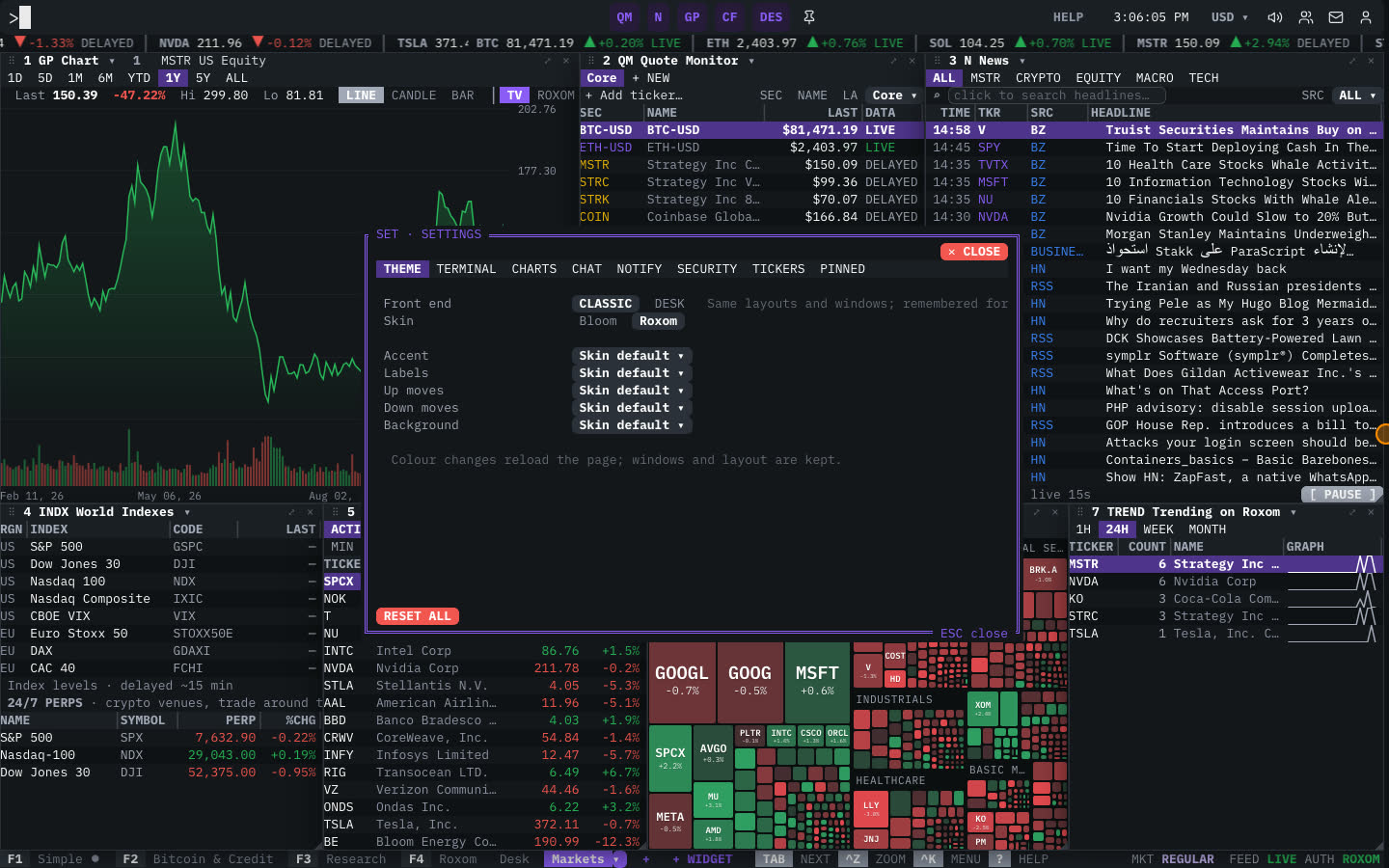
Type SET or open Profile → Settings. Settings are grouped in tabs: THEME, TERMINAL, CHARTS, CHAT, NOTIFY, SECURITY, TICKERS and PINNED. Under Layouts · skin you can switch between the Bloom and Roxom color skins.
Related articles
Last modified on